Laptops have become an integral part of our lives, but they often seem to have a frustratingly short lifespan. The good news is that your laptop doesn’t have to follow this disappointing trend. With the right maintenance and care, you can unlock the secret to laptop longevity and enjoy a smooth, efficient, and cost-effective computing experience. In our fast-paced digital era, Our Smartphones, laptops have become the backbone of modern life. They are our workstations, our communication hubs, our entertainment centers, and our windows to the ever-expansive digital world. Whether you’re tackling a critical project, connecting with loved ones across the globe, or simply binge-watching your favorite series, your laptop is your faithful companion. It’s a multifunctional tool that empowers us to navigate the complexities of the 21st century.
But wait there is more!!
Despite their remarkable capabilities, laptops are not immune to the passage of time and the wear and tear of daily use. As we rely on them for an increasing number of tasks, we’ve all encountered the universal frustration of a laptop that seems to have lost its spark. The once-speedy startup now feels like an eternity, applications take ages to load, and multitasking becomes an exercise in patience. It’s a situation that can quickly turn our digital haven into a source of exasperation.
By implementing the expert maintenance and care tips we’re about to share, you’ll not only extend the lifespan of your laptop but also enjoy a smoother and more efficient computing experience. These practices are easy to adopt, budget-friendly, and can become second nature in your tech-savvy routine. Get ready to unlock the secret to laptop longevity!
Step 1: The Toolkit for a Laptop Spa Day
Before we delve into the cleaning process, let’s gather our tools. You won’t need anything elaborate or expensive, just a few simple items:
1. Compressed Air Cans:
A can of compressed air is your trusty sidekick in the battle against dust and debris. It’s perfect for blowing away stubborn particles from those hard-to-reach places.
2. Microfiber Cloth:
A soft and lint-free microfiber cloth is ideal for wiping down your laptop’s screen and exterior without leaving scratches.
3. Isopropyl Alcohol:
For those stubborn smudges and stains, a small amount of isopropyl alcohol (70% or higher) can work wonders. Just be sure not to overdo it.
4. Cotton Swabs:
These are great for precision cleaning, especially around the keyboard and other tight spots.
5. Screwdriver set:
Depending on your laptop’s design, you might need a screwdriver to access internal components for a deeper cleaning.
Step 2: Power Down and Disconnect
First things first, power off your laptop and unplug any external devices. Before diving into the task of cleaning any gadget, it is crucial to prioritize safety. To prevent accidental damage and ensure your well-being throughout the cleaning process, always remember to power down the device and disconnect it from any power source.
This precautionary measure serves as a vital safeguard, eliminating the risk of electrical shock or other mishaps. By turning off the device and unplugging it, you can clean your gadget with peace of mind, knowing that you have taken the necessary steps to ensure a safe and successful cleaning experience. So, before you begin cleaning, take a moment to power down and disconnect your gadget from the power source – your safety is always worth the extra effort.
Step 3: Exterior Cleaning
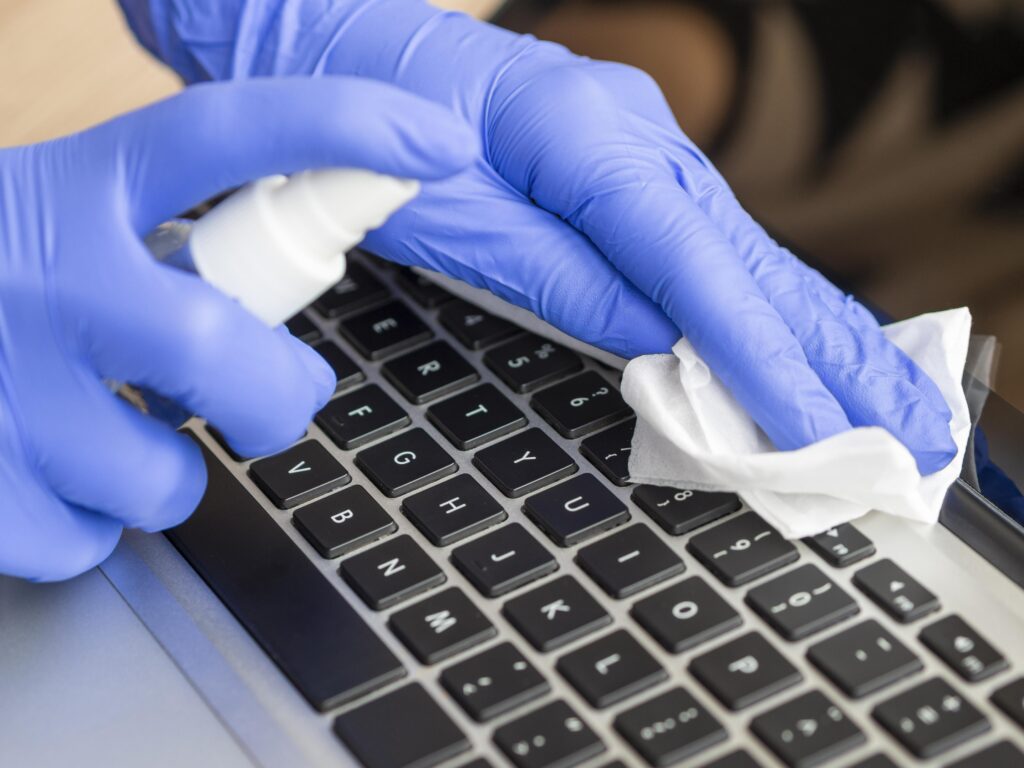
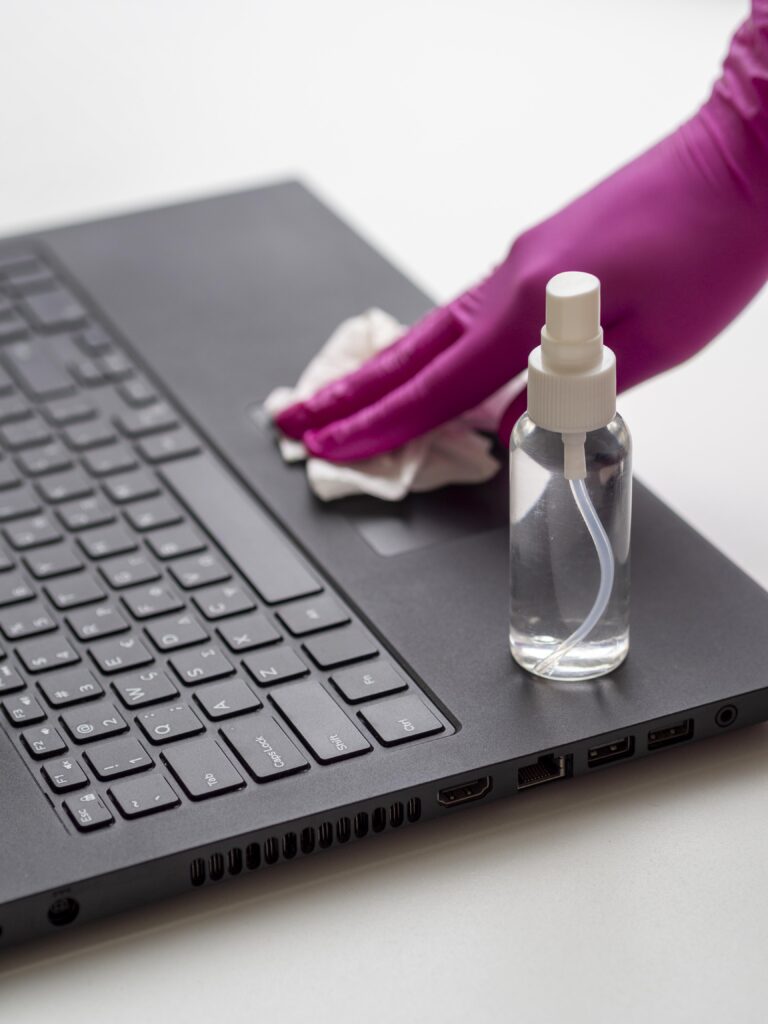
Begin with the exterior. Gently wipe down the screen, keyboard, and body of your laptop with a microfiber cloth. If there are stubborn stains, moisten the cloth slightly with isopropyl alcohol, but don’t oversaturate it. Laptops have become indispensable in our daily lives, serving as our portals to the digital world. However, in our quest to harness their power, we often overlook the importance of basic maintenance, starting with the exterior. A pristine laptop exterior not only enhances the aesthetic appeal but also contributes to its overall longevity and functionality. To achieve this, begin with a simple but effective routine: cleaning.
The initial step involves the use of a microfiber cloth, a versatile tool renowned for its gentle yet efficient cleaning abilities. This soft fabric is designed to trap dust and dirt particles, making it ideal for wiping down the laptop’s screen, keyboard, and body. By employing this gentle method regularly, you can prevent the buildup of grime that accumulates over time, potentially causing cosmetic damage and even affecting the laptop’s performance.
However, not all smudges and stains yield easily to a dry cloth. For those stubborn marks that refuse to budge, it’s wise to employ a carefully dampened cloth with isopropyl alcohol. This common household item acts as an effective solvent, breaking down oils and sticky residues without posing any harm to your laptop’s surfaces. The key is moderation; avoid oversaturating the cloth to prevent liquid from seeping into the laptop’s internal components. With these straightforward yet crucial steps, you can ensure that your laptop’s exterior remains in pristine condition, reflecting both your care and the device’s reliability.
Step 4: Clean the Screens
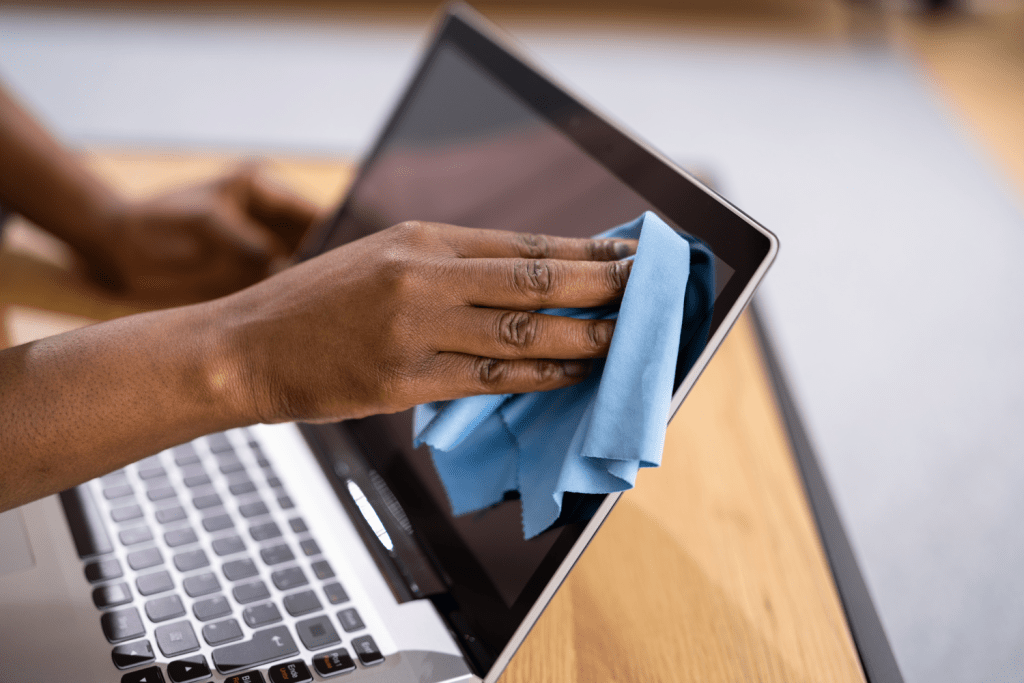
When it comes to maintaining the cleanliness of screens, it’s advisable to opt for a specialized screen cleaning solution designed for electronic devices. These solutions are meticulously crafted to efficiently eliminate smudges, fingerprints, and other blemishes while ensuring the screen’s safety. To get started, dispense a small amount of the screen cleaning solution onto a microfiber cloth. This specially designed cloth is gentle and won’t cause any scratches or harm to the screen’s surface. With the dampened microfiber cloth, gently glide it across the screen in circular motions. Exercise caution and avoid applying excessive pressure, as this could potentially harm the delicate screen. Instead, let the cleaning solution and the soft cloth work their magic. This method guarantees a thorough and secure cleaning experience for your screen.
In the case of touch screen devices like smartphones or tablets, it’s crucial to power them off before beginning the cleaning process. This precautionary measure prevents unintended inputs during the cleaning task. Always remember to adhere to the manufacturer’s guidelines for the proper care and cleaning of your specific device model. By employing a screen cleaning solution tailored for electronic gadgets in conjunction with a microfiber cloth, you can confidently and effectively maintain your screens without concerns about any damage. Keep in mind that a gentle touch and the right tools will keep your screens looking spotless and free from unsightly smudges.
Step 5: Ventilation vents
Check for ventilation vents, often located on the sides or bottom of your laptop. These are prime spots for dust buildup. Use compressed air to blow air into these vents, clearing out any blockages. Your laptop’s ventilation system plays a critical role in maintaining its temperature and preventing overheating. Over time, these essential vents can become clogged with dust and debris, hindering their efficiency. To ensure your laptop continues to operate smoothly and avoid potential overheating issues, it’s crucial to regularly inspect and clean these ventilation vents.
Ventilation vents are typically situated on the sides or bottom of your laptop. They serve as the pathways for cool air to enter and hot air to exit, keeping the internal components at an optimal temperature. However, due to their design, these vents can also become magnets for dust particles and lint. As dust accumulates, it obstructs the airflow, causing the laptop’s temperature to rise and potentially leading to performance problems or even hardware damage.
To address this issue, you can employ a simple yet effective solution: compressed air. A can of compressed air allows you to blow a focused stream of air into the vents, dislodging and expelling dust and debris. It’s a quick and efficient way to ensure that your laptop’s ventilation system remains unobstructed, maintaining the necessary airflow for cooling. By incorporating this practice into your routine maintenance, you can help prolong the life of your laptop and prevent potential heat-related issues. Regularly checking and cleaning your laptop’s ventilation vents is an often overlooked but essential aspect of laptop care. It’s a proactive measure that can prevent overheating, improve performance, and extend the longevity of your device. So, take a few moments to inspect those vents and give your laptop the breath of fresh air it needs to keep running at its best.
Step 6: Keyboard Care
Use compressed air to blow away crumbs and dust between the keys. For those hard-to-reach spots, a cotton swab lightly dampened with isopropyl alcohol can work wonders. The keyboard of your laptop is a busy place, where countless keystrokes and crumbs find their way between the keys. Over time, this accumulation of debris can not only affect your typing experience but also lead to performance issues. To keep your laptop’s keyboard in optimal condition, regular care is essential. Begin by using compressed air, which is a keyboard’s best friend. It’s a simple yet effective method for dislodging dust, crumbs, and other particles that tend to get trapped between the keys. A quick burst of compressed air can send these intruders flying out from their hiding places, restoring your keyboard to a cleaner state. It’s a good practice to perform this step periodically to prevent the buildup of debris.
For those hard-to-reach spots and stubborn residues that may not yield to compressed air alone, a cotton swab lightly dampened with isopropyl alcohol can be your secret weapon. Isopropyl alcohol is safe for electronic devices and evaporates quickly, making it ideal for cleaning keyboards. Gently run the swab between the keys, taking care not to oversaturate it, and watch as it lifts away grime and restores your keyboard to its pristine state. This targeted approach ensures that even the most challenging spots on your keyboard remain clean and functional.
By incorporating these keyboard care practices into your laptop maintenance routine, you not only enhance your typing experience but also extend the lifespan of your device. A well-maintained keyboard not only looks better but also functions more reliably, ensuring that your laptop continues to serve you well for years to come. Remember, a little care goes a long way in preserving the longevity and performance of your laptop’s essential components.
Step 7: Regular Updates and Backups
Regularly updating the software on your gadgets is not just a matter of convenience; it’s a crucial aspect of responsible device ownership. The fast-paced evolution of technology brings with it an array of enhancements and security measures that can significantly improve your user experience. Imagine gaining access to cutting-edge features, smoother operations, and fortified defenses against cyber threats, all through a simple software update. Staying up to date with these improvements ensures that your gadgets remain at the forefront of innovation, adapting to the ever-changing digital landscape with grace and efficiency.
However, safeguarding your devices goes beyond software updates. In the unpredictable world of technology, unexpected accidents and device failures can disrupt your digital life in an instant. This is where automated backups come to the rescue. Whether it’s cherished family photos, critical work documents, or important files, automated backups act as a digital safety net, preserving your data against the unexpected. By setting up these backups to run regularly, you create a fail-safe mechanism that stores your valuable information securely, allowing you to rest easy knowing that it’s accessible and recoverable when needed. With various backup options at your disposal, including the convenience of cloud-based services or the reliability of external hard drives, you have the flexibility to choose the solution that aligns with your preferences and requirements.
By embracing the practice of both regular software updates and automated backups, you not only keep your gadgets running smoothly but also fortify your digital fortress against potential threats and data loss. These habits reflect responsible digital citizenship, ensuring that your devices are not only functional but also resilient in the face of the uncertainties of the modern digital age. Make it a part of your routine to check for updates and schedule automated backups, and in doing so, empower yourself to navigate the digital world with confidence and peace of mind.
Conclusion:
In today’s fast-paced digital world, your laptop is your lifeline, and ensuring its longevity is more important than ever. By following these expert maintenance and care tips, you can not only extend your laptop’s lifespan but also enjoy a faster, more reliable, and cost-effective computing experience. Don’t let your laptop become another disposable device. Instead, empower yourself with the knowledge and practices to make it last. Start your journey to a longer-lasting laptop today! Ready to unlock the secret to laptop longevity? Share your thoughts, questions, and success stories in the comments below, and join our community dedicated to extending the life of your trusted laptop. Remember, with the right care, your laptop can be a reliable companion for years to come.
As we conclude our journey through the landscape of laptop longevity, remember that these practices are not just about extending the lifespan of your laptop. They’re about preserving your digital world, safeguarding your memories, and protecting your work. By mastering these principles of laptop care and data protection, you’ve taken significant steps toward ensuring that your digital life endures and thrives for years to come.


 Samsung Galaxy S21 Ultra 5G (Phantom Black, 16GB, 512GB Storage) International; warranty
2 × ₦560,175.00
Samsung Galaxy S21 Ultra 5G (Phantom Black, 16GB, 512GB Storage) International; warranty
2 × ₦560,175.00  Battery Case 4000mAh for iPhone 7 Plus / 8 Plus 7P/8P-4000
1 × ₦19,581.00
Battery Case 4000mAh for iPhone 7 Plus / 8 Plus 7P/8P-4000
1 × ₦19,581.00  Samsung Galaxy S21 Plus 5G (Phantom Black, 8GB, 128GB Storage)
2 × ₦345,400.05
Samsung Galaxy S21 Plus 5G (Phantom Black, 8GB, 128GB Storage)
2 × ₦345,400.05  AC1350 Wireless MU-MIMO Gigabit Ceiling Mount Access Point
1 × ₦80,000.00
AC1350 Wireless MU-MIMO Gigabit Ceiling Mount Access Point
1 × ₦80,000.00  NIKON D5200 UK USED
1 × ₦431,818.18
NIKON D5200 UK USED
1 × ₦431,818.18  Samsung Galaxy S21 5G (Phantom Black, 8GB, 256GB Storage)
1 × ₦331,699.95
Samsung Galaxy S21 5G (Phantom Black, 8GB, 256GB Storage)
1 × ₦331,699.95  Oraimo Soundflow Speaker OBS-72D
1 × ₦45,047.00
Oraimo Soundflow Speaker OBS-72D
1 × ₦45,047.00  ZEALOT S98 HIGH POWER BLUETOOTH SPEAKER
1 × ₦209,719.95
ZEALOT S98 HIGH POWER BLUETOOTH SPEAKER
1 × ₦209,719.95  Canon EOS 600D UK USED
1 × ₦390,000.00
Canon EOS 600D UK USED
1 × ₦390,000.00  LOG GAMING WIRED KEYBOARD M-C RED LED
2 × ₦75,000.00
LOG GAMING WIRED KEYBOARD M-C RED LED
2 × ₦75,000.00  HP STYLUS PEN GOLD
1 × ₦67,500.00
HP STYLUS PEN GOLD
1 × ₦67,500.00 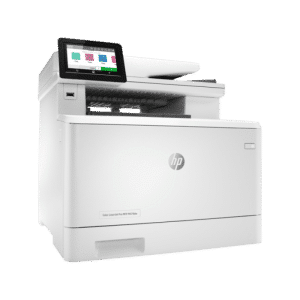 HP COLOUR LASERJET PRO M479FNW MULTIFUNCTION PRINTER (W1A78A)
1 × ₦890,000.00
HP COLOUR LASERJET PRO M479FNW MULTIFUNCTION PRINTER (W1A78A)
1 × ₦890,000.00 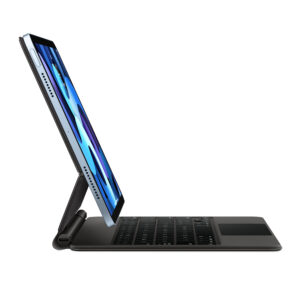 IPad 12.9” Folio Smart Keyboard
1 × ₦232,500.00
IPad 12.9” Folio Smart Keyboard
1 × ₦232,500.00 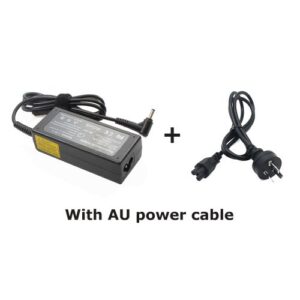 LENOVO 20V-2.25A CHARGER
1 × ₦15,000.00
LENOVO 20V-2.25A CHARGER
1 × ₦15,000.00 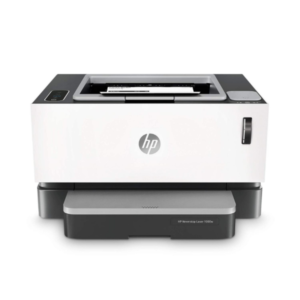 HP Neverstop Laser 1000w 4RY23A
1 × ₦250,000.00
HP Neverstop Laser 1000w 4RY23A
1 × ₦250,000.00  Case for MacBook pro
1 × ₦36,000.00
Case for MacBook pro
1 × ₦36,000.00  CANON PIXMA MG2540S PRINTER
1 × ₦75,000.00
CANON PIXMA MG2540S PRINTER
1 × ₦75,000.00  Apple IPad Pro 12.9" 2020 512GB WIFI ONLY (Used)
1 × ₦1,016,500.05
Apple IPad Pro 12.9" 2020 512GB WIFI ONLY (Used)
1 × ₦1,016,500.05  SMART KEYBOARD CASE IPAD AIR /PRO 9.7
1 × ₦30,000.00
SMART KEYBOARD CASE IPAD AIR /PRO 9.7
1 × ₦30,000.00 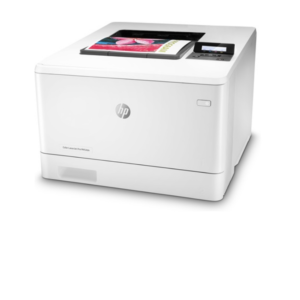 HP COLOUR LASERJET PRO M454DN PRINTER (W1Y44A)
1 × ₦630,000.00
HP COLOUR LASERJET PRO M454DN PRINTER (W1Y44A)
1 × ₦630,000.00 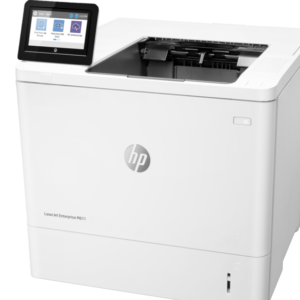 HP LASERJET ENTERPRISE M611DN PRINTER (7PS84A)
1 × ₦1,200,000.00
HP LASERJET ENTERPRISE M611DN PRINTER (7PS84A)
1 × ₦1,200,000.00  Apple Watch Series 6 44mm GPS
1 × ₦270,000.00
Apple Watch Series 6 44mm GPS
1 × ₦270,000.00  ORAIMO Keyboard And Mouse Kk30
1 × ₦27,000.00
ORAIMO Keyboard And Mouse Kk30
1 × ₦27,000.00 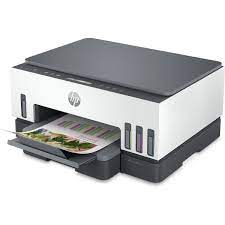 HP SMART TANK 720 ALL -IN-ONE PRINTER (6UU46A)
1 × ₦400,000.00
HP SMART TANK 720 ALL -IN-ONE PRINTER (6UU46A)
1 × ₦400,000.00