In today’s fast-paced world, our laptops have become indispensable tools for work, communication, and entertainment. Whether you’re a student, a professional, or simply someone who enjoys streaming your favorite shows, the last thing you want is for your laptop’s battery to die on you when you need it most. But fear not! In this blog post, we’re going to share some invaluable laptop battery life hacks that will help you get the most out of your device. Say goodbye to frustrating low battery warnings and hello to extended productivity and enjoyment!
Laptop batteries have come a long way in recent years, thanks to advances in technology. However, even with these improvements, the demand we place on our laptops often outpaces their battery life. We’ve all been there – sitting in a coffee shop, on a long flight, or at an important meeting, desperately searching for an outlet to charge our laptops.
But don’t worry, because you can do more to maximize your laptop‘s battery life than simply purchasing a laptop with a larger battery. In this article, we’ll delve into practical strategies that will not only extend the battery life of your current laptop but also help you maintain it for the long haul. In this post, we will explore a range of laptop battery life hacks that are both easy to implement and highly effective. By following these strategies, you can significantly extend your laptop’s battery life, improve your productivity, and reduce the environmental impact of your device.
Let’s dive into these awesome laptop battery life hacks:
1. Adjust Your Display Settings:
Your laptop’s display is one of the most power-hungry components, and optimizing its settings can make a substantial difference in your battery life. Here are some effective strategies to help you conserve battery power and make the most of your laptop’s charge:
Dim The Brightness: One of the quickest and most effective ways to save battery life is by reducing your screen’s brightness. Most laptops have a function key or settings option that allows you to adjust the brightness easily. Lowering the brightness not only saves power but can also be more comfortable for your eyes, especially in dimly lit environments.
Enable Adaptive Brightness: Some laptops come equipped with adaptive brightness settings that automatically adjust the screen’s brightness based on your surroundings. This feature can be particularly useful for extending battery life, as it ensures your display isn’t brighter than necessary.
Screen Sleeping Time: Customize your laptop’s screen sleep settings to have the display turn off more quickly when it’s not in use. In Windows, you can find these settings under “Power & Sleep” in the Control Panel. On a Mac, it’s in the “Energy Saver” preferences. Reducing the time it takes for your screen to sleep can significantly reduce power consumption during periods of inactivity.
Use Dark Or Black Background: If your laptop features an OLED or AMOLED screen, consider using a dark or black desktop background. Unlike traditional LCD screens, these technologies can power off individual pixels, which means that displaying dark colors consumes less energy. Take advantage of this by choosing a dark wallpaper, and you’ll notice a difference in your battery life.
By implementing these display settings adjustments, you can maximize your laptop’s battery life while still enjoying a vibrant and comfortable screen. These simple changes make a substantial impact on how long you can work, study, or entertain yourself on a single charge. Remember that each laptop model may have slightly different settings, so explore your laptop’s power management options to tailor them to your specific needs.
2. Clear Necessary Background Application:
In the hustle and bustle of our digital lives, it’s all too easy to have a multitude of applications running in the background on our laptops. What you may not realize is that these unneeded background processes are silently draining your laptop’s battery. Fortunately, there are steps you can take to regain control over your laptop’s power usage and make your charge last longer. Here’s how:
Regularly Check Your Task Manager: Your laptop’s task manager is your best friend when it comes to identifying and closing unnecessary background applications. Press Ctrl + Shift + Esc (Windows) or Command + Space and type “Activity Monitor” (macOS) to access your task manager. Sort the processes by their power usage and close those that you aren’t actively using. Common culprits include browser tabs, productivity software, or communication apps that linger in the background.
Browsers Extensions and Tabs: Modern web browsers are notorious for being resource hogs, particularly when you have multiple tabs open or numerous extensions installed. Keep an eye on the number of tabs you have open and consider suspending or closing those that are not currently in use. Additionally, evaluate your browser extensions and disable or remove any that you no longer require.
Operating System Battery Saver Modes: Both Windows and macOS offer battery saver modes that automatically optimize background processes to reduce power consumption. On Windows, you can enable “Battery Saver” mode by clicking the battery icon in the system tray and selecting it. In macOS, “Energy Saver” preferences can be customized to reduce power consumption when your laptop is running on battery.
Background Apps and Notification: Many apps, both built-in and third-party, have background processes that can be disabled to save power. Review your app settings to turn off background updates and notifications for applications that don’t require real-time information, such as email clients and social media apps.
System Tray Applications: The system tray (also known as the notification area) in the Windows taskbar and the macOS menu bar can often harbor background apps and services. Right-click on these icons and check if they have options to exit or disable background operation.
By taking these steps, you’ll minimize the number of background applications sapping your laptop’s battery, allowing you to extend your work or play time significantly. Not only will you enjoy longer battery life, but you’ll also experience improved overall performance and responsiveness.
3. Manage Your Power Settings:
Laptops have become our constant companions, helping us stay connected, productive, and entertained while on the go. But what if your laptop’s battery life falls short of your needs? Fear not, for your operating system provides a powerful tool for managing your laptop’s power consumption and extending its battery life. Let’s delve into the world of power settings and discover how they can work in your favor:
Power Plans and Modes: Most modern operating systems, including Windows and macOS, come with power management options. These are predefined profiles that allow you to optimize your laptop’s performance and energy usage based on your current needs. The key modes to be aware of are:
Balanced: The default power plan that balances performance and power consumption.
Power Saver (Windows) or Energy Saver (macOS): Ideal for conserving battery life when you’re running low on power. These modes reduce the CPU’s performance and tweak various power-hungry settings to extend battery life.
Custom Power Plans: You’re not limited to these predefined power plans. You can create a custom plan to suit your specific requirements. For instance, you might set a plan optimized for work with lower screen brightness and a reduced CPU clock speed, or one for entertainment with high performance and brightness settings.
Automate Power Transition: Some laptops come with smart features that automatically transition between power plans based on your usage patterns. Check if your laptop offers this capability and, if so, enable it to have the system automatically switch to a power-saving mode when your battery is running low.
Monitor Battery Usage: Keep an eye on your laptop’s battery usage by checking the battery icon in your taskbar or menu bar. This provides real-time information on your battery’s charge level. Knowing how much battery life you have left can help you make informed decisions about when to switch to a power-saving mode.
Adjust Advanced Settings: Dive into your power plan’s advanced settings to fine-tune your power management. You can control settings like when the display or hard drive turns off, or how the CPU behaves under different conditions.
Battery Threshold: Some laptops offer a feature that lets you set charge thresholds to limit how much the battery charges. By keeping the charge between 20% and 80%, for example, you can prolong the overall battery lifespan.
By managing your laptop’s power settings, you can squeeze every drop of energy from your battery, making it last longer when you need it most. Whether you’re working on an important project, streaming your favorite show, or just browsing the web, optimizing your power settings ensures you won’t run out of juice prematurely. So, don’t let your laptop’s power settings go unnoticed. Take advantage of these tools to customize your laptop’s performance to your needs and keep your battery running strong, even when you’re on the move. Your laptop’s battery life will thank you!
4. Keep Your Software Updated:
In the dynamic world of technology, where laptops have become indispensable for work, study, and leisure, ensuring your laptop’s battery lasts as long as possible is essential. One often overlooked yet highly effective way to achieve this is through software updates. Yes, those sometimes annoying notifications about updates are not just about security and features; they can also boost your laptop’s battery life. Let’s delve into why staying up-to-date is essential:
Power Efficiency Improvements: Software developers are continually working to enhance the efficiency of their applications and operating systems. These improvements can lead to reduced power consumption during everyday tasks. By updating your software, you’re not only getting the latest features and bug fixes but also the benefits of these power-saving enhancements.
Operating System Updates: Operating system updates, such as Windows updates, macOS updates, or Linux kernel updates, often include tweaks and optimizations for better energy efficiency. These updates can help your laptop’s hardware perform at its best while consuming less power.
Driver Updates: Device drivers, the software that allows your hardware to communicate with your operating system, play a crucial role in power management. Updated drivers can lead to improved power efficiency, especially for components like the graphics card and Wi-Fi adapter.
Firmware Updates: In addition to software updates, many laptops receive firmware updates from the manufacturer. These updates can fine-tune the hardware’s performance and power management. Make sure to regularly check for firmware updates specific to your laptop model.
Application Updates: Applications like web browsers, productivity software, and media players frequently receive updates that may include performance improvements and power-saving features. Keeping your apps up to date ensures you’re benefiting from these enhancements.
Bug Fixes: Bugs in software can sometimes lead to increased power consumption. Software updates often address these issues, ensuring your laptop runs more efficiently and uses less energy.
By keeping your software, operating system, drivers, and applications up to date, you’re not only enjoying a smoother and more secure computing experience but also maximizing your laptop’s battery life. Each update brings with it a potential improvement in power efficiency, contributing to longer-lasting charges and a more productive and enjoyable time with your laptop.
So, when that software update notification pops up, embrace it as an opportunity to not only enhance your laptop’s performance but also to make your battery last longer. Stay updated, and watch your laptop become a reliable and energy-efficient companion in your daily tasks. Your laptop’s battery life will thank you!
5. Practice Good Battery Maintenance:
Laptop batteries degrade over time, and there’s no way to avoid this entirely. However, you can slow down the degradation process by not overcharging your laptop and keeping it within the recommended temperature range. For long-term health, it’s a good idea to unplug your laptop occasionally and let the battery drain partially before recharging it.
By following these laptop battery life hacks, you can enjoy more productivity and entertainment without constantly worrying about finding an outlet. These strategies not only conserve your laptop’s battery but also contribute to a greener, more sustainable digital lifestyle. So, start implementing these tips today and unlock the full potential of your laptop’s battery life.
Remember, a longer-lasting laptop battery is just a few adjustments away, ensuring you’re always ready for the challenges of our increasingly digital world.
Conclusion:
By adopting these laptop battery life hacks, you can bid farewell to those nerve-wracking low battery warnings and usher in extended productivity and entertainment. Not only will you save time and enhance your laptop’s performance, but you’ll also contribute to a more sustainable future by conserving energy.
Don’t hesitate—start applying these strategies today to unlock your laptop’s true potential. With minimal effort and these simple adjustments, you can ensure your laptop remains a reliable companion for years to come.
In this digital age, knowledge is indeed power, and making your laptop battery last longer is the secret to a more productive and enjoyable experience.


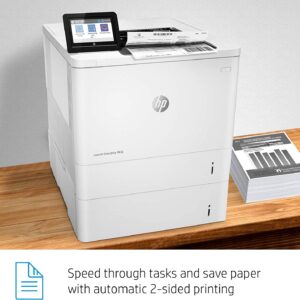 HP LASERJET ENTERPRISE M612DN PRINTER (7PS86A)
1 × ₦1,300,000.00
HP LASERJET ENTERPRISE M612DN PRINTER (7PS86A)
1 × ₦1,300,000.00  samsung galaxy A12 64GB ROM 4GB RAM Uk Used
1 × ₦115,500.00
samsung galaxy A12 64GB ROM 4GB RAM Uk Used
1 × ₦115,500.00  Soundcore Motion X600 High-Quality Sound Wireless Speaker
1 × ₦265,360.05
Soundcore Motion X600 High-Quality Sound Wireless Speaker
1 × ₦265,360.05 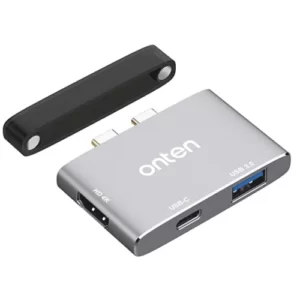 ONTEN USB-C ADAP MACBOOK PRO HUB(91183)
1 × ₦27,000.00
ONTEN USB-C ADAP MACBOOK PRO HUB(91183)
1 × ₦27,000.00  USB-C TO 3.5MM HEADPHONE JACK ADAPTER
1 × ₦15,000.00
USB-C TO 3.5MM HEADPHONE JACK ADAPTER
1 × ₦15,000.00 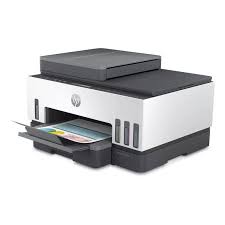 HP SMART TANK 750 ALL -IN-ONE PRINTER (6UU47A)
1 × ₦460,000.00
HP SMART TANK 750 ALL -IN-ONE PRINTER (6UU47A)
1 × ₦460,000.00 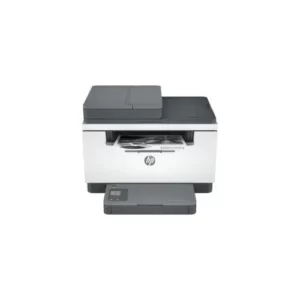 HP LASERJET M236SDN MULTIFUNCTION PRINTER 9YG08A
1 × ₦400,000.00
HP LASERJET M236SDN MULTIFUNCTION PRINTER 9YG08A
1 × ₦400,000.00  CANON EF 50MM UK USED
1 × ₦213,636.36
CANON EF 50MM UK USED
1 × ₦213,636.36 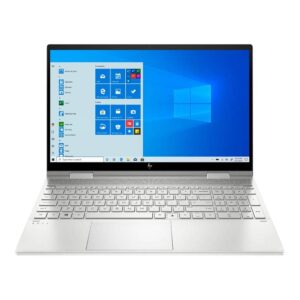 HP ENVY x360 Laptop 15-ew0024nia (6Z6C4EA) Intel Core i5, 16GB DDR4 2DM 3200 RAM, 512GB PCIe value SSD, Intel Iris Xe, Touchscreen, 15.6 FHD IPS 250 nits Narrow Border, Windows 11 Home, Natural silver, 1 year Warranty
1 × ₦1,014,000.00
HP ENVY x360 Laptop 15-ew0024nia (6Z6C4EA) Intel Core i5, 16GB DDR4 2DM 3200 RAM, 512GB PCIe value SSD, Intel Iris Xe, Touchscreen, 15.6 FHD IPS 250 nits Narrow Border, Windows 11 Home, Natural silver, 1 year Warranty
1 × ₦1,014,000.00  HP DESKJET PLUS INK ADVANTAGE 6075 ALL-IN-ONE PRINTER (5SE22C)
1 × ₦200,000.00
HP DESKJET PLUS INK ADVANTAGE 6075 ALL-IN-ONE PRINTER (5SE22C)
1 × ₦200,000.00 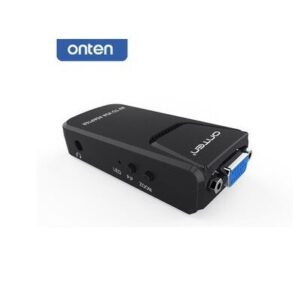 ONTEN VIDEO TO VGA ADAPTER OTN-5129
1 × ₦16,500.00
ONTEN VIDEO TO VGA ADAPTER OTN-5129
1 × ₦16,500.00 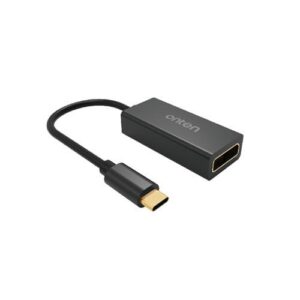 ONTEN USB C TO 4K *2K HDMI (UHD) 91185
1 × ₦13,500.00
ONTEN USB C TO 4K *2K HDMI (UHD) 91185
1 × ₦13,500.00 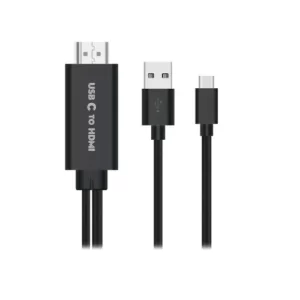 ONTEN USB-C TO HDMI CABLE 4K OTN-9572S
1 × ₦21,000.00
ONTEN USB-C TO HDMI CABLE 4K OTN-9572S
1 × ₦21,000.00  HARDSHELL CASE MACBOOK NEW PRO 16
1 × ₦30,000.00
HARDSHELL CASE MACBOOK NEW PRO 16
1 × ₦30,000.00  Godox S- Bracket Bowens Mount Holder For Speedlite Flash
1 × ₦35,000.00
Godox S- Bracket Bowens Mount Holder For Speedlite Flash
1 × ₦35,000.00