Welcome to the ultimate guide on how to give your laptop a power boost and make every ounce of battery life count! In a world that thrives on constant connectivity, a dying laptop battery can feel like a race against time. Fear not, tech enthusiasts, because we’ve got your back! In this blog, we unveil the secrets to supercharging your laptop’s performance and squeezing every last drop of power from your battery. Whether you’re a student on the go, a remote worker seeking productivity nirvana, or simply someone who values efficiency, these six powerful tips will revolutionize the way you use and preserve your laptop’s battery life. Say goodbye to midday charging woes and hello to a laptop that’s ready to tackle anything life throws at it! Let’s dive into the world of optimized power and unstoppable productivity. However, the frustrating reality is that even the most cutting-edge laptops can be hindered by limited battery life. To help you make the most out of your device and minimize those dreaded low battery warnings, we’ve compiled six powerful tips that will supercharge your laptop’s battery life. Say goodbye to the anxiety of running out of power at the most inconvenient times and welcome a longer-lasting, more efficient laptop experience.
Maximize Your Laptop’s Power
Have you ever experienced that heart-pounding moment when your laptop is gasping for power in a packed coffee shop or bustling airport, its life hanging in the balance? We’ve all danced on the edge of that precipice. The great news? There’s a treasure trove of practical, effortless tactics waiting to be unleashed—strategies that will empower your laptop to defy the odds, ensuring you can conquer work, indulge in play, or immerse yourself in a binge-watching marathon without the relentless anxiety of the dreaded battery countdown. Join us as we unveil the secrets to extending and supercharging your laptop’s vitality with six groundbreaking tips that will revolutionize how you navigate the digital realm. Brace yourself for a journey into the world of limitless laptop power!
This article will equip you with practical knowledge and actionable tips to maximize your laptop’s battery life. From optimizing settings to adopting smart charging habits, these strategies will not only prolong your laptop’s power but also enhance your overall computing experience. Let’s embark on a journey to unlock the full potential of your laptop’s battery and make low battery anxiety a thing of the past.
To start our journey towards a longer-lasting laptop battery, begin by optimizing your power settings. Adjust your laptop’s power plan to balance performance and power consumption. Windows and macOS offer customizable power plans that enable you to tailor your laptop’s settings based on your usage. By tweaking these settings, you can significantly extend the time between charges without compromising on performance. It’s time to unlock the hidden potential of your laptop and extend its battery life without sacrificing performance. Welcome to the realm where customization is king, and your laptop’s longevity is the crown jewel. Picture this: your laptop’s battery enduring the marathon of productivity, entertainment, and everything in between. The journey starts with a strategic move – optimize your power settings. Dive into the intricacies of Windows and macOS, where customizable power plans await your command. These plans are not mere blueprints; they are the keys to a kingdom where balance reigns supreme. Tweak the settings, find the equilibrium, and watch as your laptop transforms into an energy-efficient powerhouse.
Are you ready to witness the magic of balance? Your laptop’s power plan isn’t just a collection of settings; it’s a symphony orchestrating the delicate dance between performance and conservation. Striking the right chord ensures that your laptop thrives in efficiency and endurance. Say goodbye to the days of compromise, where sacrificing speed was the price for a few extra minutes of battery life. With the right power settings, you can now revel in the harmony of prolonged productivity without the performance blues.
Tailoring Settings to Your Unique Needs
No two users are the same, and neither should their power settings be. Welcome to Personalization 101, where tailoring your laptop’s settings becomes an art. Whether you’re a creative professional pushing the limits of your machine or a casual user navigating the digital landscape, there’s a power plan designed just for you. Dive into the sea of customization options, and sculpt your power settings to match your unique needs. It’s not just about preserving battery life; it’s about crafting an experience that resonates with your digital lifestyle. As you embark on this journey of power optimization, envision a future where the constraints of battery life are but a distant memory. Your laptop becomes a reliable companion, adapting seamlessly to your demands without the looming fear of the dreaded low battery warning. Embrace the power of customization, and witness your laptop defy expectations. The horizon is vast, and with optimized power settings, you’re not just extending battery life – you’re forging a path to a future with endless power. Welcome to a new era of laptop longevity; the journey begins now.
2. Manage Background Apps:
Unbeknownst to many users, background applications can be a silent drain on your laptop’s battery. Take control by closing unnecessary apps running in the background. Task Manager on Windows and Activity Monitor on macOS are valuable tools to identify and close resource-hungry applications. By keeping only essential apps running, you’ll ensure that your laptop operates more efficiently, preserving precious battery life. In the grand arena of laptop longevity, defeating the unseen villains is half the battle. Enter the realm of efficiency as we unveil the secret weapon against battery drain – mastering background apps. These silent culprits, lurking in the shadows, can stealthily deplete your laptop’s energy. It’s time to take control, wield the tools at your disposal, and emerge victorious with a laptop that stands tall against the relentless march of time.
Task Manager vs. Activity Monitor
In the quest for prolonged battery life, you’ll face a crucial decision – Windows or MacOS. Fear not, for both kingdoms offer their knights: Task Manager and Activity Monitor. These tools are your trusted allies in the battle against battery-sucking apps. Task Manager, the valiant defender of Windows users, and Activity Monitor, the noble guardian for those in the macOS realm, are your gateways to identifying and closing resource-hungry applications. Choose your side, or embrace the duality and master the art on both fronts. Imagine your laptop as a finely tuned orchestra, each app playing a distinct role in the symphony of your digital experience. Now, it’s time to conduct with precision. By closing unnecessary background apps, you’re not just conserving energy; you’re orchestrating a masterpiece of efficiency. Task Manager and Activity Monitor become your baton, guiding you to selectively operate only the essentials. The result? A laptop experience that not only lasts longer but performs with a finesse that leaves a lasting impression.
Just as we strive to reduce our carbon footprint in the physical world, it’s time to minimize the digital footprint on your laptop’s battery. Each app running in the background is a tiny faucet, dripping away your laptop’s energy reservoir. Take charge, turn off the unnecessary taps, and watch as your laptop becomes a beacon of sustainability, operating efficiently that echoes your commitment to a greener digital environment.
As you embark on this journey to slay the battery-draining dragons, envision a future where your laptop hums in the symphony of silence. Unshackled from the unnecessary burdens of background apps, it becomes a haven of efficiency, ready to respond to your every command with unparalleled swiftness. The battleground is set, and with Task Manager or Activity Monitor as your trusted swords, you’re not just closing apps – you’re crafting a background of efficiency for your laptop. Join the ranks of the digitally savvy, and let your laptop’s battery thrive in the quiet triumph over background app chaos. Your symphony of efficiency awaits!
3. Adjust Display Brightness and Sleep Settings To Extend Battery Life:
Your laptop’s display is a major contributor to power consumption. Lowering the brightness level and adjusting the sleep settings can make a substantial difference in battery life. Consider enabling adaptive brightness or auto-brightness features, allowing your laptop to adjust screen brightness based on ambient light conditions. Additionally, set shorter sleep times to ensure your laptop goes into power-saving mode when not in use. Ever feel like your laptop’s display is a dazzling sun, radiating not just light but also devouring your precious battery life? Fear not, for the path to an extended digital day lies in mastering display settings. Lowering brightness and fine-tuning sleep settings transform your laptop into a power-efficient beacon, ensuring you’re not just staring into brilliance but also basking in the glory of prolonged battery life.
In the grand spectacle of power management, consider adaptive brightness and auto-brightness features as the magical choreographers. These features allow your laptop to dance with ambient light, adjusting screen brightness dynamically. Picture a laptop that not only adapts to your whims but also to the changing light around you. It’s not just about brightness; it’s about synchronizing with the rhythm of your environment, a dance that ensures your laptop’s battery waltzes through the day with grace.
Sleep Tight, Save Right
Your laptop has a bedtime too, and it’s time to ensure it sleeps tight to save right. Adjusting sleep settings is akin to tucking your laptop into a power-saving dreamland when it’s not in use. Set shorter sleep times, and witness the magic as your laptop gracefully slips into power-saving mode, conserving energy for the adventures that await when you wake it up. It’s not just about saving battery; it’s about crafting a restful sanctuary for your laptop, ensuring it’s always recharged and ready for the next digital escapade. In the quest for prolonged battery life, the brightness slider becomes your ally. Lower it wisely, and your laptop rewards you with extended brilliance. Eyes on Efficiency is not just a phrase; it’s a mantra to live by. Finding the sweet spot where brightness meets visibility while minimizing power consumption is an art. Navigate the slider with finesse, and witness the magic unfold as your laptop operates with optimal efficiency, extending its battery life with every calculated adjustment.
4. Update Software Regularly:
Keeping your operating system and applications up to date is not just about accessing new features and security patches; it also contributes to optimizing power efficiency. Developers often release updates that include performance enhancements, bug fixes, and battery optimizations. Schedule regular software updates to ensure your laptop is running on the latest and most efficient versions of its software. We live in a world where technology evolves faster than you can say “upgrade.” In this whirlwind of advancements, your laptop is more than just a sleek device with a keyboard – it’s a powerhouse waiting to be unleashed. And the key to unlocking its full potential? Regular software updates. Yes, you heard it right. Those pesky notifications urging you to update aren’t just about fixing bugs or getting shiny new features; they are the secret sauce that turbocharges your laptop’s performance.
Let’s talk bugs – the tiny gremlins that can turn your smooth-sailing experience into a chaotic rollercoaster. Regular software updates are the unsung heroes that wage war against these bugs, ensuring a seamless user experience. Bug fixes not only enhance your laptop’s performance but also protect it from potential security threats. It’s like having a superhero squad that swoops in, clears the way, and leaves your laptop standing tall and invincible. We all want a laptop that stands the test of time, a trusty companion that doesn’t feel outdated after a few spins around the sun. Regular software updates are your ticket to future-proofing your device. Developers don’t just fix today’s problems; they anticipate tomorrow’s challenges. By staying updated, you equip your laptop to handle the technological landscape of the future, making sure it doesn’t become a relic in the fast-paced world of tech evolution.
Making Updates Work for You
Now that we’ve unveiled the magic behind regular software updates, let’s talk strategy. Schedule those updates like you’re orchestrating a symphony of efficiency. Set a time when your laptop is least active, ensuring minimal disruption to your workflow. Remember, it’s not just about keeping up; it’s about leading the charge. So, embrace the updates, and watch your laptop transform into a high-performance machine, ready to conquer the digital frontier.
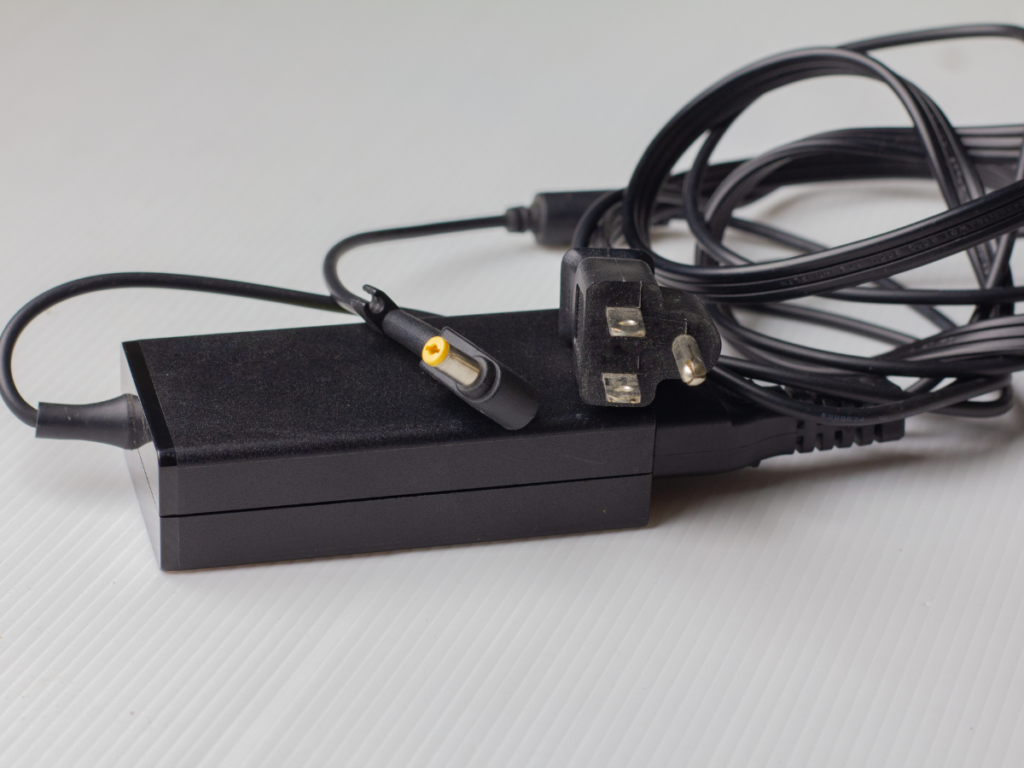
Charging your laptop may seem straightforward, but adopting smart charging habits can significantly impact battery longevity. Avoid keeping your laptop constantly plugged in, as this can reduce battery capacity over time. Instead, aim for a regular charging cycle, letting the battery level drop to around 20% before recharging. Invest in quality chargers and cables to ensure a consistent and reliable charging experience. Our laptops have become indispensable companions, seamlessly weaving into the fabric of our daily lives. Yet, in the quest for efficiency, we often overlook the impact of our charging habits on the longevity of our laptop batteries. The truth is, mindful charging can be the secret sauce to unlocking extended vitality for your trusty device.
Charging your laptop may seem like a mundane task, but the impact on your device’s battery longevity is anything but trivial. Imagine a world where your laptop battery retains its youthful vigor over the years. To unlock this longevity secret, embrace the philosophy of occasional detachment. Constantly keeping your laptop plugged in is akin to holding it hostage – it might seem secure, but over time, the battery capacity dwindles. A wiser approach is to let your laptop breathe, allowing its battery to drop to around 20% before treating it to a refreshing charge. It’s like a spa day for your device, rejuvenating it for the tasks that lie ahead. It’s not just about how often you charge; it’s also about the tools you use. Investing in high-quality chargers and cables is akin to providing a first-class meal for your laptop. Cheap, subpar accessories can deliver erratic power, leading to unnecessary stress on your device’s battery. Opting for reliable chargers ensures a consistent and reliable charging experience, reducing the risk of premature battery wear and tear.
Unraveling the Charging Myth
Let’s debunk a common myth – leaving your laptop plugged in overnight won’t result in overcharging. Most modern laptops are equipped with smart charging technology that prevents overcharging. However, the real concern lies in the constant trickle of electricity that can gradually wear down the battery. By unplugging your laptop when it reaches around 80%, you’re not just avoiding overcharging; you’re extending the life of your battery. In a world where efficiency is paramount, adopting mindful charging habits is a small yet impactful step toward empowering your laptop and, in turn, enhancing your productivity. By understanding the nuances of charging cycles, investing in quality accessories, and dispelling common myths, you’re not just preserving your laptop’s battery life – you’re elevating your entire computing experience. So, let’s charge smart, unplug wisely, and embark on a journey to unlock the full potential of our loyal technological companions.
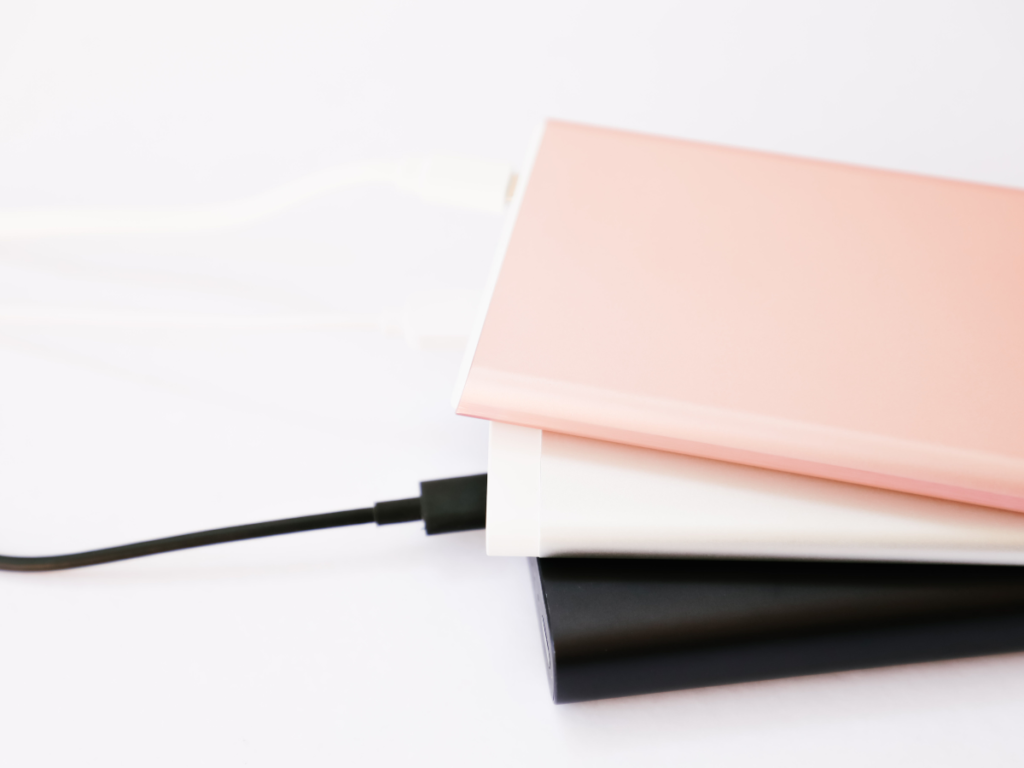
For those times when finding a power outlet is challenging, having an external battery or power bank can be a lifesaver. Compact and portable, these devices provide an additional power source, allowing you to extend your laptop’s usage when on the go. Ensure compatibility with your laptop, and keep one in your bag for emergencies, providing you with peace of mind during long flights, road trips, or work sessions away from a power source. In a world fueled by technology, where our lives are intertwined with technology, the need for constant connectivity is non-negotiable. Picture this: you’re halfway through an important project, and suddenly your laptop battery indicator turns red. Panic sets in, right? Fear not! Enter the game-changer – the external battery or power bank. In this tech-savvy world, investing in one of these compact powerhouses is not just a choice; it’s a savvy move that grants you the freedom to work, play, or binge-watch without being tethered to a power outlet.
When the hunt for a power outlet becomes a modern-day treasure hunt, having an external battery is like having your secret stash of power. Picture this scenario: you’re on a cross-country road trip and inspiration strikes. Your laptop, unfortunately, doesn’t share the excitement and is about to give up. Enter the external battery – your knight in shining armor. These compact lifesavers ensure your laptop stays charged, transforming any location into a potential workspace. Whether you’re in an airport lounge, a cozy cafe, or even camping under the stars, an external battery ensures your laptop stays powered up, and your productivity remains uninterrupted. Gone are the days of lugging around bulky power sources. External batteries are the superheroes of the tech world – compact, lightweight, and packing a punch in the power department. Toss one into your bag, and you’ve got a portable lifeline that can keep your laptop alive and kicking when you need it the most. Sleek designs and user-friendly interfaces make these devices accessible to tech enthusiasts and casual users alike. They’re not just tools; they’re companions that effortlessly blend into your lifestyle, ready to rescue you from the brink of a low-battery catastrophe.
Peace of Mind for Every Venture
Whether you’re a digital nomad jet-setting across continents or a student pulling an all-nighter, the external battery is your trusty sidekick. No more fretting over finding a power outlet during crucial meetings or fearing a sudden shutdown during an epic gaming session. With an external battery in your arsenal, you’re equipped for the unexpected twists and turns of the modern, mobile lifestyle. It’s not just about convenience; it’s about having the peace of mind that your laptop will have the power it needs, whenever and wherever duty calls. Consider your external battery not just an accessory but an investment in your productivity. Think of it as an insurance policy against the uncertainties of power availability. As the saying goes, “Prevention is better than cure,” and in this case, preventing a sudden power outage is the key to staying ahead in the game. Make the wise choice today, and witness the transformative power of having an external battery – your ticket to a charged-up, uninterrupted digital experience, no matter where life takes you!
Unlocking the full potential of your laptop’s battery life is within your grasp. By implementing these six powerful tips, you’re not just preserving power; you’re supercharging your device for optimal performance. Embrace efficiency, adopt smart charging habits, and tweak settings judiciously to witness a remarkable difference. As you embark on this journey to maximize battery life, remember that small changes yield big results. Take charge of your laptop’s longevity and empower your work and play seamlessly. It’s time to elevate your computing experience—implement these tips today and revel in the extended power at your fingertips!


 Logitech M190 Full-Size Wireless Mouse – Charcoal (910-005905)
1 × ₦18,000.00
Logitech M190 Full-Size Wireless Mouse – Charcoal (910-005905)
1 × ₦18,000.00  4GB DDR3 RAM
1 × ₦16,500.00
4GB DDR3 RAM
1 × ₦16,500.00  IPad 12.9” Folio Smart Keyboard
1 × ₦232,500.00
IPad 12.9” Folio Smart Keyboard
1 × ₦232,500.00  Sandisk Ultra Dual Drive M3.0 32GB OTG
1 × ₦15,000.00
Sandisk Ultra Dual Drive M3.0 32GB OTG
1 × ₦15,000.00  SANDISK MEMORY CARD 32GB
1 × ₦13,500.00
SANDISK MEMORY CARD 32GB
1 × ₦13,500.00