


Master the Art of Laptop Hardware Upgrades: A 5-Step Pro Guide for Optimal Performance Leave a comment
Introduction:
Laptop Hardware Upgrades hold the key to a transformative journey, unlocking the full potential of your device in a digital era where speed and efficiency reign supreme. Are you tired of your laptop lagging, and struggling to keep up with your demanding tasks? The answer might not lie in buying a new machine; instead, it could be as simple as mastering the art of laptop hardware upgrades. Imagine turning your existing laptop into a powerhouse that can handle anything you throw at it. Intrigued? Let’s embark on a journey to unlock the full potential of your device through strategic hardware upgrades. In the fast-paced world of technology, our laptops often become outdated sooner than we’d like. Upgrading your laptop’s hardware is a cost-effective solution to breathe new life into your device, enhancing its performance and extending its lifespan. Whether you’re a student dealing with heavy-duty software for assignments or a professional managing intricate projects, this guide is tailored to help you navigate the intricate process of laptop hardware upgrades.
The quest to future-proof our devices is not merely a desire but a necessity. Upgrading your laptop’s hardware is a strategic move to extend its lifespan and keep it relevant in the face of rapidly advancing technologies. This section will explore how thoughtful upgrades can prepare your laptop for the challenges of tomorrow, ensuring it remains a reliable companion throughout your academic pursuits or professional endeavors. From choosing the right components to understanding compatibility issues, this guide will equip you with the knowledge needed to make informed decisions that contribute to the longevity of your device.
CLICK HERE to view more related products
A Step-by-Step Guide to Laptop Hardware Upgrades
Embarking on a journey to upgrade your laptop’s hardware can be daunting, especially for those unfamiliar with the intricacies of computer components. This section aims to demystify the process by providing a step-by-step guide to laptop hardware upgrades. From assessing your current hardware configuration to selecting compatible components and executing the upgrade, each stage will be dissected and explained. This comprehensive guide aims to empower users, regardless of their technical expertise, to undertake hardware upgrades confidently, transforming their laptops into powerful and reliable workhorses that meet their evolving needs.
This comprehensive guide will walk you through a 6-step professional approach to laptop hardware upgrades, ensuring optimal performance and a significant boost in speed and efficiency. By the end, you’ll be equipped with the knowledge to make informed decisions, saving you from the unnecessary expense of buying a new laptop.
1. Asses Your Laptop’s Compatibility:

Before diving into the world of upgrades, it’s crucial to understand your laptop’s compatibility with new hardware. Our guide will provide you with a checklist to determine whether your device is upgrade-friendly, ensuring a smooth transition without any compatibility issues. Embarking on the journey of upgrading your laptop can be an exciting endeavor, but it’s essential to begin with a solid foundation. The first checkpoint on your upgrade roadmap is assessing your laptop’s compatibility with the new hardware you have in mind. In this guide, we’ll walk you through a comprehensive checklist, empowering you to make informed decisions and steer clear of compatibility hiccups.
Understanding your laptop’s compatibility is akin to charting a course before setting sail. We’ll delve into the intricacies of hardware specifications, ensuring that your device is ready to embrace the upgrades you have in mind. From RAM to storage and beyond, our guide will be your trusted companion in navigating the sometimes confusing waters of laptop upgrades. Picture this checklist as your GPS for a smooth upgrade journey. We’ll demystify technical jargon, providing you with a user-friendly guide to assess your laptop’s compatibility. Uncover the secrets of your device’s motherboard, CPU socket, and graphics card support. This checklist is your roadmap to a successful upgrade, sparing you from the headache of realizing mid-process that your laptop isn’t on board with your vision.
Join the Upgrade Revolution
Upgrade your laptop with confidence, armed with the knowledge to navigate the intricate landscape of compatibility. Our guide is more than just a checklist; it’s an invitation to join the upgrade revolution. Equip yourself with the insights needed to transform your laptop into a powerhouse, ready to tackle whatever tasks come your way. The future of your device awaits, and we’re here to guide you every step of the way. Let’s elevate your laptop experience together!
CLICK HERE to view more related products
2. Identify the Right Component:
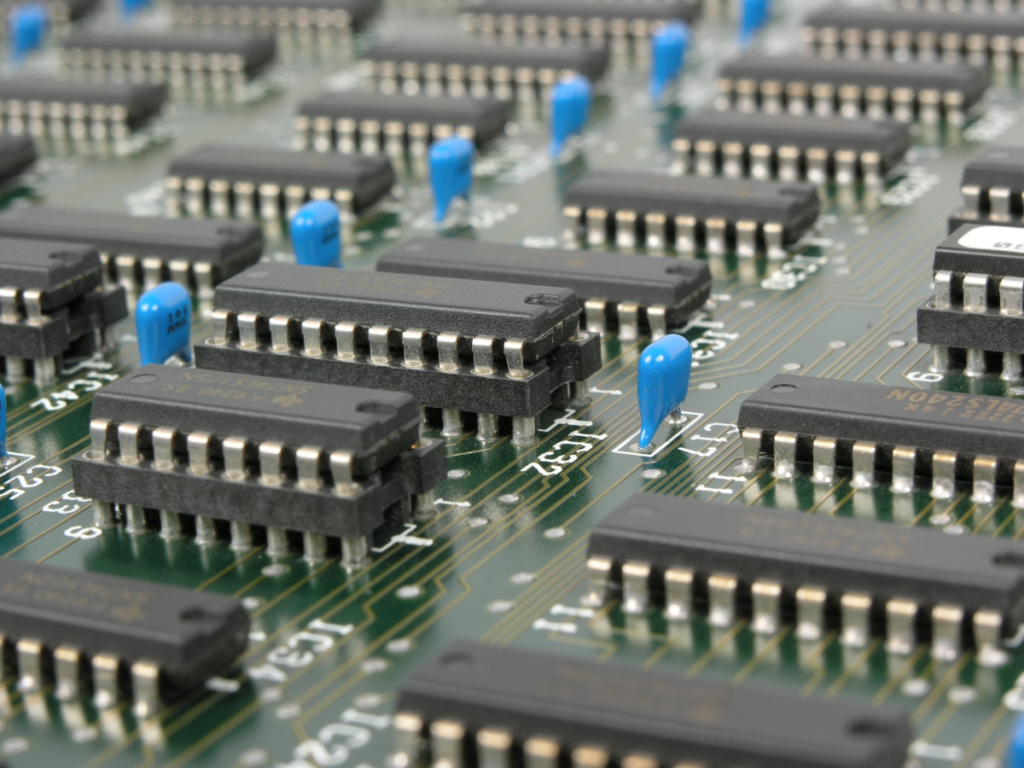
Choosing the right components is the backbone of successful laptop upgrades. We’ll explore the latest hardware options, discussing the best processors, RAM modules, and storage solutions for your specific needs. With our insights, you’ll be able to make informed decisions that align with your performance expectations. Embarking on the thrilling adventure of upgrading your laptop is like forming a superhero squad, where every component is a key player in achieving ultimate performance. Join us on this exciting journey as we unravel the mysteries of laptop components, spotlighting the newest and most fantastic options out there. Think of this guide as your personalized treasure map to create a laptop that not only meets but surpasses your wildest expectations. Get ready to assemble your tech Avengers!
At the heart of every laptop lies the powerhouse: the processor. We’ll unravel the mysteries of the latest processors, discussing their capabilities, speeds, and how they impact overall system performance. Whether you’re a casual user, a creative professional, or a gaming enthusiast, we’ve got the insights to help you pick the perfect processor that aligns seamlessly with your computing needs. Random Access Memory (RAM) is the unsung hero of smooth multitasking and speedy performance. We’ll explore the world of RAM modules, breaking down the intricacies of capacity, speed, and compatibility. Our guide will empower you to make informed decisions, ensuring that your laptop has the right amount of RAM muscle to handle anything from heavy graphics work to intense gaming sessions.
Tailoring Components to Your Needs
The beauty of laptop upgrades lies in their personalization. Our guide not only showcases the best components available but also helps you tailor them to your unique needs. Whether you’re building a productivity powerhouse or a gaming beast, we’ll provide the knowledge you need to choose components that align with your expectations. Say goodbye to one-size-fits-all solutions and hello to a laptop that’s truly yours. Choosing the right components is the key to unlocking the full potential of your laptop. Armed with our insights, you’re not just upgrading; you’re crafting a masterpiece tailored to your needs. Join us on this journey of component discovery, and let’s elevate your laptop experience together. Your dream laptop is just a few well-informed decisions away!
3. Back Up Your Data:

No upgrade is without its risks, and protecting your valuable data should be a top priority. Learn the best practices for backing up your files and settings before undertaking any hardware changes. Our guide will provide you with step-by-step instructions to ensure a seamless data transfer process. Venturing into a laptop upgrade adventure is thrilling, but amidst the excitement, don’t overlook the importance of safeguarding your digital treasure trove – your data. In this guide, we unravel the art of data backup, making it a seamless and non-negotiable step in your upgrade preparations. Consider this your digital insurance policy, ensuring that your cherished files and settings remain intact throughout the hardware metamorphosis.
Why Backup Matters!!
Imagine your laptop as a vault of memories, important documents, and personalized settings. Now, picture upgrading without a safety net – that’s where data backup steps in as the unseen hero of the upgrade story. We’ll delve into the ‘why’ behind the importance of backup, illuminating the potential risks and showcasing how a few proactive steps can save you from data-related heartaches. Backing up data doesn’t need to be a daunting task. Our guide provides you with a step-by-step walkthrough, demystifying the backup process. From selecting the right backup method to choosing the ideal storage location, consider this your upgrade safety net. We’ll cover everything from essential documents to personalized settings, ensuring no digital gem is left behind.
As you venture into the realm of laptop upgrades, let peace of mind be your constant companion. Our guide not only emphasizes the importance of data backup but also serves as your companion on the journey to achieving it. Consider it a digital checklist, a guardian of your valuable files, and the ultimate upgrade companion. Your laptop transformation is about to begin, and with a robust data backup strategy, you can embrace it with confidence.
CLICK HERE to view more related products
4. Master the Art of Installation:

The prospect of upgrading your laptop’s hardware can be daunting, but fear not! Our comprehensive step-by-step installation guide is your passport to conquering the unknown. Think of it as your roadmap, complete with visuals and expert advice, making the process of upgrading from RAM to storage a breeze. Say goodbye to uncertainty and hello to a laptop that’s primed for peak performance. Before diving into the intricate world of hardware upgrades, set the stage for success. Our guide begins with preparing your workspace – creating a clean, well-lit environment free of distractions. This seemingly simple step lays the foundation for a smooth installation process, ensuring that every component change is executed with precision.
Demystifying RAM Installation
RAM is the workhorse behind multitasking and swift performance. In our guide, we demystify the process of RAM installation, breaking it down into easy-to-follow steps. With visuals as your guide, you’ll confidently navigate the terrain of motherboard slots and secure your new RAM sticks, elevating your laptop’s capabilities without breaking a sweat.
Unlock the Power of Your Device with Easy RAM Installation
Step 1: Gather Your Tools and RAM Modules
- Tools needed:
- Phillips screwdriver
- Anti-static wrist strap (optional but recommended)
- RAM Modules:
- Ensure compatibility with your laptop.
- Check the maximum supported RAM capacity.
Step 2: Prepare Your Workspace
- Static-Free Work Environment:
- Work on a clean, non-static surface.
- Consider using an anti-static mat or working on a wooden table
Step 3: Power Off and Unplug
- Shutdown Your Laptop:
- Save any open files and shut down your laptop.
- Unplug the power cord and remove the battery if possible.
Step 4: Identify RAM Slots On Your Laptop
- Refer To Your Laptop Manual:
- Identify the location and type of RAM slots.
- Most laptops have accessible slots under a cover on the back or beneath the keyboard.
Step 5: Open the RAM Component
- Remove Access Panel or Battery
- In some laptops, you might need to remove the battery to access RAM.
- Use the screwdriver to remove panels or screws covering the RAM compartment.
Step 6: Ground Yourself:
- Anti-Static Precautions:
- Strap on an anti-static wristband to prevent damaging sensitive components.
- Touch a grounded metal surface to discharge any static electricity.
Step 7: Identify the Notch on the RAM Stick
- Locate the Notch:
- Examine the RAM stick for a small notch along the connector edge.
- Ensure it aligns with the notch in the RAM slot.
Step 8: Install the RAM Stick
- Align and Insert:
- Gently place the RAM stick into the slot at a 45-degree angle.
- Press down until the clips on either side click into place.
Step 9: Secure Additional RAM Sticks (If Needed)
- Repeat the Process:
- If adding more RAM, follow steps 7 and 8 for each additional stick.
- Refer to your laptop manual to ensure proper slot utilization.
Step 10: Close the Compartment and Power On
- Secure Panels and Power Up:
- Close the RAM compartment cover and secure any screws.
- Power on your laptop and check the system properties to confirm the RAM upgrade.
Step 11: Verify Installed RAM
- Check System Information:
- Go to your laptop’s system information or task manager to verify the new RAM capacity.
- Ensure the system recognizes the upgraded RAM.
Step 12: Enjoy Improved Performance
- Test and Experience:
- Open multiple applications and observe the improved multitasking performance.
- Your laptop is now equipped to handle more demanding tasks seamlessly.
Congratulations! You’ve successfully demystified RAM installation and boosted your laptop’s performance.
CLICK HERE to view more related Products
A Transformed Laptop Awaits
As you follow our step-by-step installation guide, envision the moment when your laptop transforms into a high-performance powerhouse. Celebrate each successful installation, knowing that you’ve mastered the art of hardware upgrades. With our guide by your side, you’re not just upgrading components; you’re shaping a laptop that aligns with your needs and aspirations. Let the transformation begin!
5. Optimize Your System Settings:

Congratulations on successfully upgrading your laptop’s hardware! Now, it’s time to unleash the full potential of your newfound capabilities through strategic system optimizations. In this guide, we’ll explore the software side of the equation, ensuring that your upgraded components are complemented by a finely tuned system, resulting in peak performance. Think of your upgraded laptop as a symphony of hardware and software working in harmony. Our step-by-step guide to system optimization is the missing musical score that elevates your device’s performance to new heights. From fine-tuning your operating system to optimizing power settings, each step is designed to bring out the best in your upgraded components.
Your laptop’s operating system is the conductor of the performance. We’ll guide you through the art of fine-tuning, showcasing how simple adjustments can lead to significant speed improvements. Whether you’re a Windows aficionado or a macOS enthusiast, our guide caters to both, ensuring a seamless optimization process regardless of your operating system preference. Balancing performance and battery life is an art, and our guide helps you strike the perfect equilibrium. We’ll walk you through the intricacies of power settings, empowering you to make informed decisions that align with your usage patterns. Discover the sweet spot where your laptop performs at its peak without sacrificing precious battery life – a crucial aspect for both productivity and on-the-go convenience.
System optimization isn’t a one-time affair; it’s an ongoing commitment to maintaining peak performance. Our guide doesn’t just stop at the initial tweaks – we provide insights into routine maintenance practices that will keep your laptop running smoothly. From disk cleanup to software updates, consider this section your roadmap to sustained excellence, ensuring your upgraded laptop remains a force to be reckoned with.
Where Hardware Meets Software Mastery!
As you embark on the journey of system optimization post-hardware upgrade, envision a laptop experience where hardware and software mastery converge. Our guide is your companion in this transformative process, unlocking the full potential of your device. It’s not just about upgrades; it’s about creating a seamless synergy between your laptop’s components and its operating environment. Get ready to elevate your laptop experience to unparalleled heights – where performance knows no bounds!
Conclusion:
In our in-depth guide, “Master the Art of Laptop Hardware Upgrades: A 5-Step Pro Guide for Optimal Performance,” you’ve been equipped with the knowledge to transform your laptop into a performance powerhouse. From compatibility checks to system optimization, each step has been carefully crafted to ensure your device reaches its full potential. Now, it’s your turn to take charge. Implement the proven strategies outlined in this guide and witness firsthand the incredible improvements in your laptop’s performance. Whether you’re a seasoned tech enthusiast or a newcomer to hardware upgrades, the steps are straightforward, the guidance is comprehensive, and the results are game-changing.
Seize this opportunity to redefine your laptop experience. Join the league of those who’ve embraced the upgrade revolution. Elevate your computing capabilities, whether it’s for work, creativity, or leisure. Your laptop’s transformation journey begins now – act decisively, upgrade confidently, and unlock the true power within your device!
