


5 Powerful Steps to Clean and Maintain Your Laptop Like a Pro Leave a comment
Introduction:
Have you ever noticed your laptop slowing down, overheating, or not performing as efficiently as it used to? Chances are, it might require some tender loving care. Like any other technology, laptops require regular maintenance to keep them running smoothly and extend their lifespan. But fear not, because, in this post, we will reveal five powerful steps to clean and maintain your laptop like a pro. Whether you’re a seasoned tech enthusiast or a casual user, these tips will help you keep your device in tip-top shape for years to come. So, you’ve noticed your trusty laptop isn’t quite the speed demon it once was. Maybe it’s been lagging during those crucial work presentations or taking ages to load your favorite game. Don’t despair; your laptop isn’t doomed to sluggishness forever. With a little TLC and the right know-how, you can breathe new life into your beloved device.
First off, let’s talk about cleaning. It’s easy to overlook, but dust and dirt buildup can wreak havoc on your laptop’s performance. Think of it like the gunk that accumulates in your car’s engine – eventually, it’s going to start causing problems. So, grab a soft cloth and some compressed air, and get to work. Gently wipe down the exterior, paying extra attention to the vents and ports where dust loves to hide. Then, carefully blast away any stubborn debris with the compressed air. Trust me; your laptop will thank you for it. This simple step alone can make a world of difference in keeping your machine running cool and quiet.
Next up, let’s talk about software. Just like your smartphone, your laptop’s operating system and apps need regular updates to stay in top shape. These updates often include important bug fixes and security patches that can help protect your device from malware and other digital nasties. So, make it a habit to check for updates regularly and install them as soon as they’re available. It only takes a few minutes, but it can save you a world of headaches down the line. And while you’re at it, take a look at your startup programs and trim the fat. Do you need Spotify, Discord, and Steam all launching at once? Probably not. By disabling unnecessary startup programs, you’ll help your laptop boot up faster and run more smoothly.
Unlock Peak Performance
In this article, we’ll explore five effective steps that will empower you to clean and maintain your laptop like a pro. From basic cleaning techniques to advanced software optimization tips, these strategies will help you maximize the performance and longevity of your device, allowing you to get the most out of your investment.
1. External Cleaning:
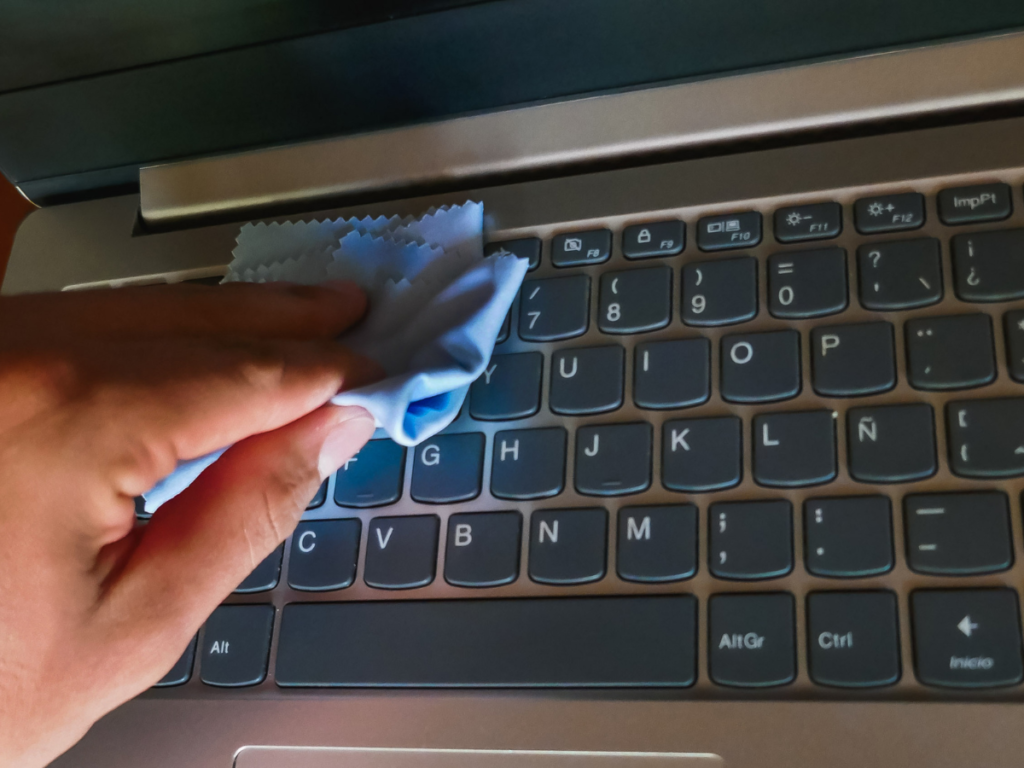
The first step to maintaining your laptop is to keep its exterior clean and free from dust, dirt, and grime. Start by shutting down your laptop and unplugging it from any power sources. Then, using a soft microfiber cloth, gently wipe down the surfaces of your laptop, including the keyboard, trackpad, and screen. For stubborn stains or smudges, you can dampen the cloth with a mixture of water and mild detergent. Be sure to avoid using harsh chemicals or abrasive materials, as these can damage the delicate components of your laptop. Your laptop, that trusty companion through thick and thin, deserves a little TLC. After all, it’s been there for you during late-night study sessions, work deadlines, and Netflix marathons. So, why not show it some love with a thorough external cleaning routine? Let’s dive into the first step of laptop care: External Cleaning.
Picture this: your laptop, gleaming like it just came out of the box. To achieve this level of pristine, start by powering down your laptop and disconnecting it from any power sources. Safety first, right? Now, grab a soft microfiber cloth – the unsung hero of cleanliness – and get ready to banish those pesky dust bunnies and grime monsters. Gently wipe down every surface of your laptop, from the keyboard to the trackpad and screen. It’s like giving your laptop a spa day but without the cucumber slices.
Stubborn Stains, Begone
But wait, what about those stubborn stains that just won’t budge? Fear not, dear reader, for we have a solution. Mix up a gentle concoction of water and mild detergent – think baby shampoo levels of gentle – and dampen your clothes. With a delicate touch, tackle those smudges and stains with the power of patience and persistence. Just remember, to avoid the temptation to unleash harsh chemicals or abrasive materials on your beloved laptop. Trust us, it’s not worth the risk of damaging those precious components.
Protecting Your Investment
Now, you might be thinking, “But why bother with all this fuss?” Well, friend, a clean exterior isn’t just about aesthetics (though who doesn’t love a sleek, shiny laptop?). It’s also about protecting your investment and ensuring your laptop’s longevity. By keeping dust and dirt at bay, you’re helping to prevent overheating and potential damage to sensitive internal parts. Plus, let’s face it, there’s something undeniably satisfying about working on a sparkling-clean laptop. It’s like setting the stage for productivity and creativity to flourish. So, there you have it – the first step on the path to laptop maintenance nirvana: External Cleaning. It’s simple, it’s satisfying, and it’s sure to leave you and your laptop feeling refreshed and ready to tackle whatever the world throws your way. Stay tuned for more tips and tricks to keep your laptop running smoothly, because, after all, it’s not just a device – it’s a loyal companion on your journey through life’s digital landscape.
CLICK HERE to view more related products
2. Internal Cleaning:
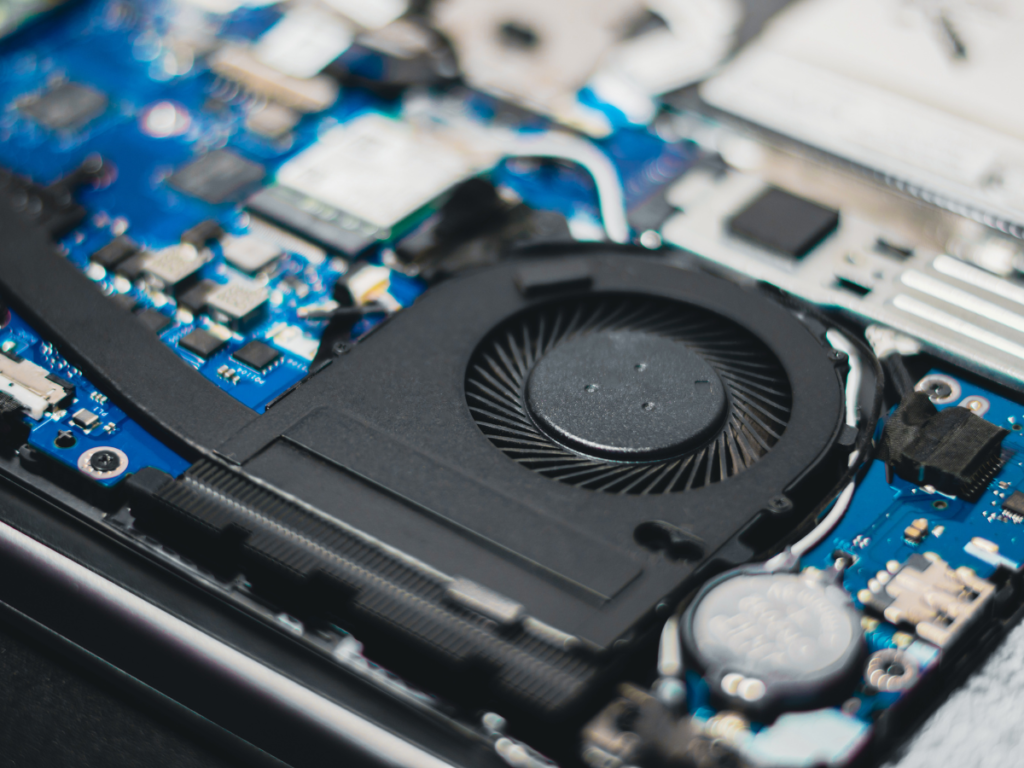
Once the external surfaces are clean, it’s time to tackle the internals of your laptop. Over time, dust and debris can accumulate inside your device, clogging the vents and fans and causing it to overheat. To prevent this, use a can of compressed air to blow out any dust from the vents and fan openings. Be sure to hold the can upright and use short bursts of air to avoid damaging the components. Additionally, consider investing in a laptop cooling pad to help dissipate heat and keep your device running cool. Our modern-day companion through work and play. But have you ever stopped to think about what’s happening inside that sleek exterior? Dust bunnies and debris lurking in the shadows, silently plotting to sabotage your device’s performance. Fear not, for in this chapter of our laptop care saga, we embark on the crucial mission of internal cleaning.
A Cool Solution for a Hot Problem
But wait, there’s more! For those seeking an extra layer of protection against the fiery wrath of overheating, behold the laptop cooling pad. A knight in shining armor for your device, this humble accessory serves as a bastion of cool amidst the chaos of heat. Simply place your laptop atop this technological marvel, and watch as temperatures plummet, performance soars, and your device thanks you with newfound vigor.
Clean and Maintain Your Laptop Like a Pro
Ah, but before you embark on this noble quest, a word of caution: tread lightly, dear reader. While the rewards of internal cleaning are great, so too are the risks. Remember to hold the can of compressed air upright, lest you inadvertently unleash a tempest of destruction upon your unsuspecting device. And when selecting a cooling pad, choose wisely – for not all are created equal. Seek out those adorned with high praise and stellar reviews, for they shall serve you faithfully in the battle against overheating. And so, dear reader, we draw to a close on this chapter of our laptop care journey. Armed with knowledge and determination, you now possess the tools to conquer the dusty depths of your device’s internals. So go forth, brave soul, and may your laptop shine brightly, free from the shackles of overheating and debris. Until next time, when we delve further into the realm of tech tidings, stay vigilant, stay curious, and may your devices never falter in the face of adversity.
CLICK HERE to view more related products
3. Software Optimization:

So, you’ve dusted off your laptop’s exterior and cleared up its physical clutter. Now it’s time to delve into the digital realm and optimize its software for peak performance. Trust me; this step is just as crucial as the physical cleanup – after all, a well-oiled machine runs smoothly both inside and out. Let’s dive into the nitty-gritty of software optimization.
Uninstall the Unnecessary:
First things first, declutter your system by bidding farewell to programs and apps you no longer need. Think of it as Marie Kondo-ing your laptop – if it doesn’t spark joy or serve a purpose, it’s time for it to go. To do this:
- Navigate to your Control Panel (or Settings on newer systems).
- Look for “Programs” or “Apps” and click on “Uninstall a program” or “Apps & features.”
- Scan through the list and bid farewell to those digital relics gathering virtual dust.
Stay Updated
Your laptop’s software is like a fine wine – it gets better with age. Well, as long as you keep it updated, that is. Regular updates not only patch security vulnerabilities but also introduce performance enhancements and compatibility fixes. Here’s how to keep your system in tip-top shape:
- Check for updates through your operating system’s settings.
- Don’t forget about drivers! Head to your device manager and look for any outdated drivers, then update them accordingly.
Tidy Up Your Disk
Imagine your laptop’s hard drive is a messy room – disk cleanup and defragmentation are like tidying up and organizing shelves. Disk cleanup helps you get rid of unnecessary files that are taking up precious space, while defragmentation rearranges fragmented data for smoother access. Here’s how to do it:
- Type “Disk Cleanup” into your search bar and run the utility.
- For defragmentation, search for “Defragment and Optimize Drives” and let your system do its magic.
Fortify Your Defenses
Your laptop may be a fortress, but even the strongest fortifications need regular security checks. That’s where antivirus software comes into play. Invest in a reputable antivirus program and schedule regular scans to keep malware and other digital nasties at bay. Here’s how to armor up:
- Research and choose a reliable antivirus software (there are plenty of free options available).
- Install the software and set up automatic scans for added convenience and peace of mind.
By following these DIY steps, you’re not only optimizing your laptop’s software but also safeguarding it against digital threats. So go ahead, give your laptop the TLC it deserves, and enjoy smoother performance and enhanced security for all your digital adventures.
CLICK HERE to view more related products
4. Battery Maintenance:
Your laptop’s battery is its lifeline, serving as the essential power source that keeps it running smoothly. Neglecting proper maintenance can have detrimental consequences, such as diminished performance and premature battery failure. Imagine being in a critical moment, relying on your laptop only to find it powerless due to neglected care. To avoid such scenarios, it’s crucial to delve into detailed tips for effective battery care. By understanding and implementing these strategies, you can maximize your laptop’s battery life and ensure it remains reliable for years to come.
Diving into the realm of effective battery care reveals a wealth of secrets that can prolong your laptop’s lifespan. From managing charging cycles to optimizing power settings, every detail counts in preserving your battery’s health. By adopting habits such as avoiding extreme temperatures and calibrating your battery periodically, you can mitigate the risk of premature failure. Embracing these practices empowers you to make the most out of your laptop’s power source, ensuring it remains dependable when you need it the most.
DIY Step-by-Step Guide:
- Know Your Battery: Different laptops come with different battery chemistries, each requiring specific care routines. Check your manufacturer’s guidelines to understand the nuances of your laptop’s battery and tailor your maintenance accordingly.
- Calibrate Regularly: Like tuning a musical instrument, your laptop’s battery needs calibration for accurate readings. Fully charge it, then discharge it until it shuts down. This recalibrates the power gauge, ensuring precise battery level readings.
- Avoid Overcharging: Just like you wouldn’t gulp down gallons of water after you’re full, your battery doesn’t appreciate overcharging. Once it reaches full capacity, unplug your laptop to prevent reduced capacity and overheating. Long-term overcharging can also degrade battery health.
- Strategic Storage: If you’re stowing away your laptop for an extended hiatus, prep its battery for hibernation. Partially charge it to around 50% before tucking it away in a cool, dry spot. This prevents degradation and ensures your battery wakes up refreshed when you need it again.
Now that you’ve got the playbook for optimal battery maintenance, it’s time to put it into action. With these DIY steps, you’ll be the master of your laptop’s lifeline, ensuring it stays powered up and ready to tackle whatever challenges come your way.
5. Regular Checkups and Upkeep:

Congratulations on reaching the final step of mastering your laptop’s maintenance routine! Now, it’s time to ensure that your device stays in tip-top shape for the long haul. Regular checkups and upkeep are the keys to preserving its performance and longevity. Embrace this responsibility with reverence and diligence, for in your hands lies the power to extend the lifespan of your device and unlock its fullest potential. Just as a gardener tends to their garden with tender care, nurturing the soil, pruning the branches, and shielding delicate blooms from harsh elements, so too must you nurture your laptop. Regular software updates, disk cleanup, and virus scans serve as the digital equivalent of watering, weeding, and pest control, ensuring that your device remains resilient against the ever-evolving threats of the cyber world. Let’s dive into the details:
Key Steps For Peak Performance
Maintaining your laptop like a pro involves establishing a routine maintenance schedule and staying proactive. Regular checkups and upkeep ensure optimal performance and minimize the risk of unexpected issues. Here’s how to stay on top of it:
- Set a Regular Maintenance Schedule: Treat your laptop to regular checkups, including cleaning, software updates, and battery calibration. Consistency is key to keeping your laptop running smoothly.
- Back-Up Important Data: Don’t risk losing essential files. Set up regular backups using cloud storage or external hard drives. It’s your safety net in case of hardware failure or unforeseen accidents.
- Monitor Performance and Temperature: Keep an eye on your laptop’s performance and temperature using built-in diagnostic tools or third-party software. Address any anomalies promptly to prevent potential hardware damage.
- Seek Professional Help When Needed: Don’t hesitate to seek professional assistance when encountering complex issues or if you’re unsure about certain maintenance tasks. It’s better to be safe than sorry when it comes to your laptop’s health.
By following these steps diligently, you’ll not only prolong your laptop’s lifespan but also ensure a smooth and hassle-free user experience. Remember, a little proactive maintenance goes a long way in keeping your device running like new. So, roll up your sleeves and give your laptop the TLC it deserves!
CLICK HERE to view more related products
Conclusion:
Now that you’ve learned these five powerful steps to clean and maintain your laptop like a pro, it’s time to put them into action. Incorporate these practices into your daily routine to keep your device running smoothly and efficiently. Your laptop will thank you for it, and you’ll enjoy better performance and longevity as a result. So go ahead, give your laptop the love and care it deserves, and reap the rewards of a well-maintained device.
So don’t wait until it’s too late – start cleaning and maintaining your laptop like a pro today!
