


5 Essential Replacement Parts Every Prepared Laptop Owner Should Have Leave a comment
Introduction:
Are you a savvy laptop owner aiming to outsmart hardware hiccups? Discover the power of foresight with our guide on “5 Must-Have Replacement Parts Every Laptop Owner Should Keep on Hand.” Get ready to transform your troubleshooting game by stocking up on these vital replacement parts today!
In today’s digital era, laptops have become indispensable tools for work, study, and entertainment. However, these devices, despite their sophistication, are prone to wear and tear over time. From a malfunctioning keyboard to a flickering screen or a worn-out battery, encountering issues with your laptop is almost inevitable. Amidst such scenarios, having a basic understanding of laptop repair and possessing essential replacement parts can save the day. Whether you’re a seasoned tech wizard or an eager learner, being equipped with the right components can expedite repairs and revive your laptop in no time.
What to expect
This comprehensive guide aims to highlight the top 5 replacement parts that any laptop enthusiast should have readily available. By understanding the significance of these components and their functions, you’ll be empowered to tackle common laptop issues efficiently and effectively, ultimately enhancing your repair skills and saving both time and money.
Welcome to Amaget Store! We are dedicated to offering top-notch replacement parts that work seamlessly with a wide range of laptop models. Recognizing the significance of dependable components for excellent performance and durability, we ensure our products meet stringent quality standards. Our commitment to quality isn’t limited to our products; it extends to our blog too! We strive to create informative and captivating content aimed at simplifying laptop repair for everyone. Whether you’re an experienced tech enthusiast or new to the realm of laptop repairs, our blog caters to you.
Join us on this fascinating journey where we unravel the mysteries of laptop repair. We’re here to empower you, allowing you to emerge as your very own laptop hero. Let’s dive in together and explore the world of laptop repair!
Exploring The Top 5 Essential Replacement Parts:
1. Laptop Battery:
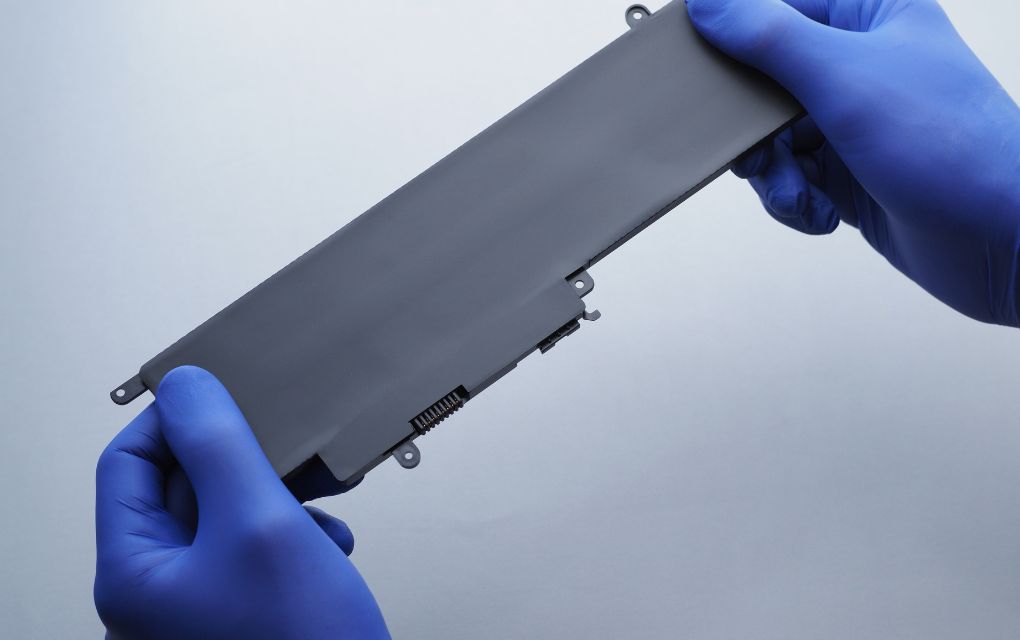
Encountering a sudden laptop shutdown during a critical task can be frustrating. However, having a spare laptop battery can transform this situation, enabling you to seamlessly swap out the depleted battery and continue working without any disruption. The key to uninterrupted productivity lies in choosing a high-quality battery that aligns perfectly with your laptop, ensuring optimal performance and durability. Keep in mind that laptop batteries have a finite lifespan and degrade over time, resulting in diminished battery life and the necessity for more frequent charging.
Maintaining a spare battery readily available allows you to effortlessly replace the exhausted one when it no longer holds a charge or fails to sustain your laptop’s power requirements. Selecting the right spare laptop battery is crucial—each laptop model requires a specific battery designed to fit its unique specifications. You can easily find this information in your laptop’s user manual or by reviewing product descriptions on our website.
Prioritizing a high-quality battery is pivotal to ensure safety, reliable performance, and prolonged longevity. Subpar batteries may compromise power output or possess a shorter lifespan, necessitating more frequent replacements. Investing in a reputable brand or purchasing from trusted suppliers ensures you’re acquiring a dependable product that meets your laptop’s power needs effectively.
The Replacement Parts Made Easy
Replacing a laptop battery typically follows a straightforward process. Begin by shutting down your laptop and disconnecting it from any power source. Locate the battery compartment, usually situated at the back or bottom of the laptop. In some instances, removing a cover or panel may be necessary to access the battery. Gently remove the old battery by releasing the latch or button, ensuring not to touch sensitive circuitry.
Installing the New Battery
Before inserting the new battery, ensure it’s fully charged as per the manufacturer’s guidelines. Align the battery properly with the compartment, ensuring connectors or pins are correctly matched. Carefully slide the battery into place until it clicks or locks securely. Reattach any removed covers or panels, then connect your laptop to a power source for the new battery to charge fully. This initial charging period is vital for the battery’s long-term performance.
In summary
A spare laptop battery not only sustains uninterrupted work but also offers flexibility while on the move, traveling, or in places where access to power outlets is limited. At Amaget Online Store, we provide a diverse selection of high-quality laptop batteries compatible with various models, prioritizing reliability for customer satisfaction and long-term usage. Investing in a spare battery ensures preparedness for unforeseen power issues. Remember, opt for compatibility and quality to maximize performance and durability. Empower your laptop and maintain productivity with a spare battery today!
2. Laptop Screens:

Dealing with a cracked or damaged laptop screen is undeniably frustrating. Rather than enduring weeks of waiting for repairs, having a replacement screen at your disposal can save both time and money. With a touch of patience and a few essential tools, you can seamlessly swap out a broken screen and revive your laptop’s visual appeal.
A damaged laptop screen disrupts your workflow and can hinder your device’s functionality, whether it’s a minor crack or a complete screen failure. A spare screen offers a swift solution to get your laptop back in action. Although replacing a laptop screen might initially appear daunting, with proper guidance, it can be a straightforward task. Your first step is finding a replacement screen that precisely matches your laptop’s make and model, ensuring compatibility for a perfect fit. Once you’ve secured the replacement screen, gather basic tools such as a screwdriver, prying tool, and a soft cloth, and work in a clean, well-lit area to prevent accidental damage.
Here’s How to Replace It
- Power off your laptop and disconnect it from any power sources to ensure safety and prevent electrical mishaps.
- Begin by removing the bezel or frame around the screen, often involving unscrewing or gently prying it away.
- Once the bezel is off, access the screen and carefully detach any cables or connectors, noting their positions for reassembly.
- Remove the old screen and position the new one in place, reattaching the cables and connectors securely.
- Secure the new screen and reattach the bezel by reversing the removal steps, ensuring all screws are tightened and the bezel is properly fitted.
- After reassembly, power on your laptop to test the new screen. A successful replacement should result in a fully operational laptop with a pristine screen.
Remember, if you feel uncertain about any step, consult your laptop’s user manual or seek professional guidance. Handle the replacement screen delicately to prevent further damage throughout the process. You can find suitable replacement screens through our shop for repair service.
Empower yourself to restore your laptop’s screen functionality and enjoy a hassle-free replacement process!
3. Laptop Keyboard Repair:
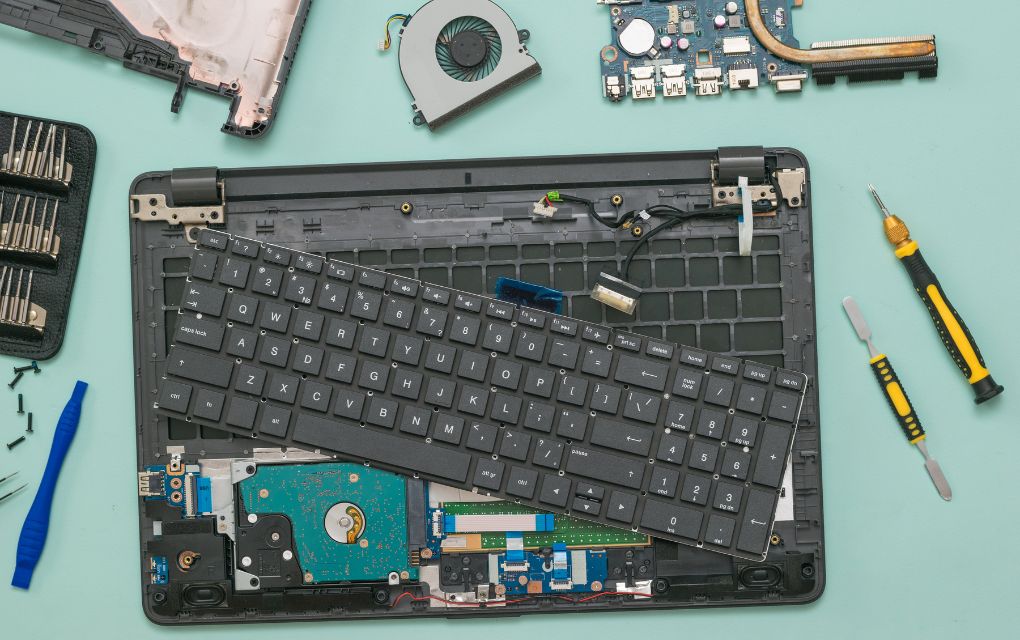
Spilled coffee, accumulated crumbs, or worn-out keys can render your keyboard ineffective. Fortunately, replacing a laptop keyboard is a straightforward task you can handle yourself. Keeping a spare keyboard nearby allows you to swiftly replace faulty keys or the entire keyboard, if necessary. Always ensure the replacement keyboard matches your laptop’s make and model for compatibility. A malfunctioning keyboard can be frustrating and hinder your productivity with sticky or unresponsive keys. Instead of enduring inconveniences or waiting for professional repairs, having a spare keyboard saves you time and effort.
Here’s The How-To Guide:
- Gather a few tools: a small screwdriver and a prying tool.
- Power off your laptop and disconnect it from any power source for safety.
- Locate the screws securing the keyboard, typically found on the laptop’s underside or beneath the battery. Remove these screws carefully.
- Gently pry up the keyboard using a prying tool, taking care to avoid damaging it or other components. Some laptops may have additional clips or connectors holding the keyboard, so detach these cautiously.
- Disconnect any cables or connectors from the keyboard, noting their positions for reassembly.
- Remove the old keyboard and position the new one, reconnecting the cables and connectors securely.
Lastly, Carefully Reassemble:
- Lower the new keyboard into place, ensuring it aligns with the screw holes. Reinsert and tighten the screws without overtightening.
- Power on your laptop and test the keys to confirm proper functionality. If issues persist with certain keys, recheck connections and make adjustments as needed.
- If you encounter difficulties, refer to your laptop’s user manual or seek professional assistance. Handle the keyboard and components delicately to prevent damage.
In Summary
At Amaget Online Store, we offer a diverse range of replacement keyboards compatible with various laptop models. We prioritize quality to ensure customer satisfaction. Keeping a spare keyboard within reach allows you to swiftly tackle any keyboard issues, ensuring uninterrupted laptop use. Don’t let a faulty keyboard slow you down—be prepared to swap out the old for the new effortlessly.
Experience hassle-free keyboard replacement and keep your laptop running smoothly!
Happy keyboard replacing!
4. Laptop Hard Drives:
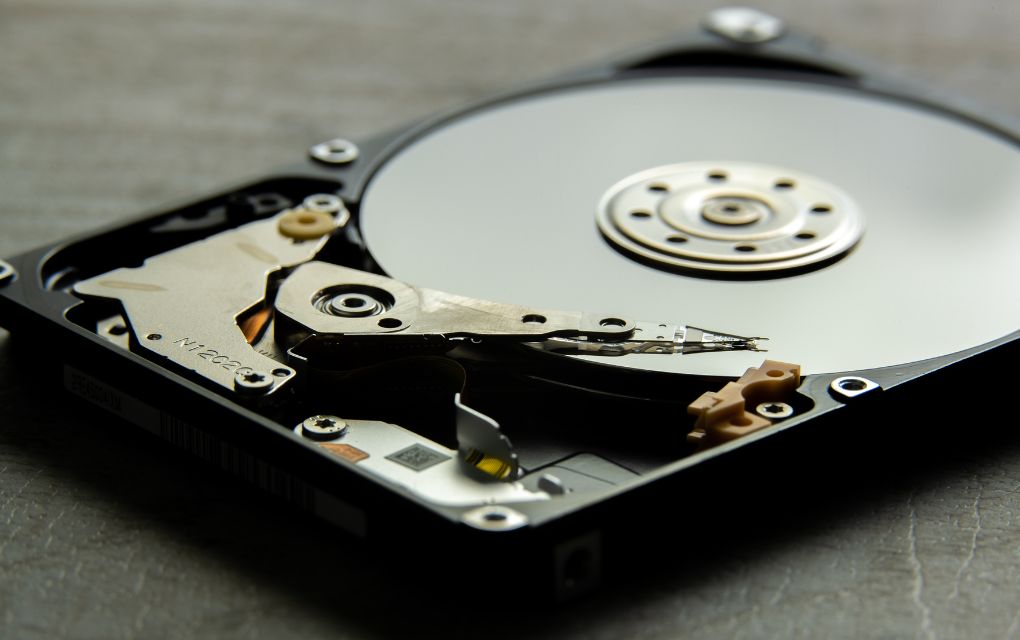
Encountering storage issues or hard drive malfunctions on your laptop can be a real headache. However, having a spare hard drive can be a game-changer in such situations. While upgrading or replacing a hard drive might seem like an advanced task, with the right tools and guidance, you can tackle it yourself. Dealing with limited storage space on your laptop can be exasperating, particularly when it involves saving vital files or installing new software. Moreover, if your hard drive is causing performance slowdowns or frequent crashes, replacing it can significantly enhance your laptop’s overall functionality.
Before you embark on the hard drive upgrade or replacement process, it’s crucial to back up all your important files to prevent any loss during the procedure. This can be accomplished by transferring files to an external storage device or utilizing cloud-based storage solutions.
Getting Started with the Replacement:
- Essential tools include a screwdriver, an external hard drive enclosure or adapter, and cloning software for transferring data.
- Locate the bottom panel on your laptop housing the hard drive, often removable by unscrewing a few screws.
- Once accessed, carefully disconnect any cables or connectors from the hard drive, noting their positions for reassembly.
- Remove the old hard drive from its bay.
If upgrading to a larger hard drive:
- Utilize cloning software to transfer all data, including files, operating systems, and settings, from the old hard drive to the new one. Follow the software’s instructions for this process.
- If replacing the hard drive entirely, install the new hard drive into the empty bay. Ensure secure attachment of necessary cables or connectors.
- Reattach the panel onto the laptop and secure it with screws.
Post-Replacement Checks:
- Power on your laptop and verify the new hard drive’s functionality. Adjust the BIOS settings boot order if needed.
- For any uncertainties during the process, refer to your laptop’s user manual or seek professional advice. Handle components with care to avoid damage.
In summary
At Amaget Online Store, we provide a range of high-quality hard drives compatible with various laptop models. We prioritize reliability and efficiency for all your storage requirements. Keeping a spare hard drive handy can save you from the hassle of storage limitations or dealing with a faulty hard drive. With the right tools and guidance, you can confidently upgrade or replace your laptop’s hard drive, enhancing performance and securing your data.
Enjoy a seamless hard drive upgrade experience!
5. Laptop Memory (RAM):
Is your laptop feeling sluggish or struggling to keep up with your workload? Upgrading its RAM (Random Access Memory) could be the solution to give it the speed boost it needs. Having a spare RAM module allows for a straightforward upgrade, significantly enhancing your laptop’s overall performance and multitasking abilities. RAM plays a pivotal role by providing temporary storage for data that your processor needs to access swiftly. Insufficient RAM can lead to lag, delayed responses, and even system crashes when your laptop tackles demanding tasks.
Upgrading your laptop’s RAM is a relatively simple DIY process, provided you have the right tools and a compatible RAM module. Before you start, ensure to check your laptop motherboard’s maximum RAM capacity, usually found in the user manual or on our website
Here’s How to Replace It:
- Determine the compatible RAM module for your laptop.
- Power off your laptop and disconnect it from any power source.
- Locate the RAM compartment, often situated on the laptop’s back or bottom, and remove the securing cover or panel.
- Inside the compartment, identify the RAM slots. If an empty slot is available, insert the new RAM module. Otherwise, remove an existing module to make space.
- To remove a RAM module, gently push the retaining clips on both sides outward until it pops up at an angle. Carefully pull the module out.
- Align the notches on the new RAM module with the slot and firmly press it down until the retaining clips snap into place.
- Replace the cover or panel, screw it in, and power on your laptop to verify if the new RAM is detected in the system information or via diagnostic software.
Remember:
- Upgrading your laptop’s RAM may void the warranty. Consult the manufacturer or seek professional assistance if your laptop is under warranty.
- Handle RAM modules carefully, avoiding static electricity and ensuring proper alignment during installation.
In Summary
At Amaget Online Store, we offer a wide range of high-quality and reliable RAM modules compatible with various laptop models. We prioritize delivering excellent products for customer satisfaction. Upgrading your RAM can significantly boost your laptop’s performance without breaking the bank. With a spare RAM module on hand, enhance your laptop’s capabilities whenever needed.
Experience improved speed and multitasking efficiency with a RAM upgrade today!
Laptop Guru
Ready to become a laptop repair maestro? Stock up on these essential replacement parts to empower yourself with the skills and resources needed to tackle any laptop issue. Whether it’s upgrading RAM or swapping a battery, being prepared is the key to seamless repairs. Start building your kit today and never let laptop issues hinder your productivity again!
Conclusion:
Having a basic understanding of laptop repair coupled with the availability of essential replacement parts can transform you into a confident troubleshooter. Stay tuned for more insightful tips and guides to help you navigate the intricate world of laptop maintenance and repair. Remember, with the right parts and knowledge, laptop repair can be a breeze!
Stay tech-savvy and keep your laptops running smoothly!
